Why Your Webcam Is Tanking Your Professional Credibility
How do remote workers actually look polished on video calls? I invested in 4K optics with HDR and discovered the difference is staggering.
I write to The ZIP Office because remote presence matters—it’s your digital handshake. During my Bali stint in 2023, I ditched my built-in MacBook camera for a Sony Alpha 6700. Paired with a Rode Wireless GO II mic and Neewer LED ring light, I eliminated the “cubicle zombie” vibe instantly. Eye-level mounting, autofocus precision, wide-angle lensing—these aren’t luxuries, they’re necessities. The ROI? Client confidence skyrocketed.
Real Talk: The Moment Everything Changed
Last March, a potential client actually commented mid-Zoom: “You look incredibly professional.” That compliment traced directly to my gear upgrade—the 4K resolution, adaptive lighting, and chromatic precision transformed how colleagues perceived my workspace credibility. That single observation convinced me video optics aren’t vanity; they’re infrastructure.
Quick Takeaways
- Prioritize 4K resolution cameras with HDR and low-light performance for crisp, vibrant, and professional image quality.
- Choose wide field of view lenses (90-180 degrees) to suit different collaboration and presentation styles.
- Select cameras with AI auto-tracking, autofocus, and stabilization to enhance focus and smoothness during dynamic meetings.
- Ensure adjustable eye-level mounting and external lighting to optimize framing, eye contact, and overall professionalism.
- Opt for cameras with color accuracy, versatility, and integration options like DSLR compatibility for elevated visual presence.
Why 4K Resolution Is a Must for Professional Remote Presence
So, here’s the deal: if you’re still rocking a 1080p webcam for those mega-important remote meetings, you’re basically showing up to a high-stakes game with a toy rifle. Think about it — your face’s details, expressions, even the tiny smirk you strike when your old boss asks about “collaboration,” all look blob-like and pixelated. That’s not professional.
You want power, precision, clarity — right? Enter 4K resolution. It’s like upgrading from a crayon drawing to a high-def masterpiece. You get crisp details, vibrant colors, and clarity that commands respect. No more blurry faces or “can you repeat that?” moments.
Instead, you look confident, sharp, like you actually belong at the big table. Being visible matters more than ever — don’t let subpar optics hold you back. For a truly professional remote presence, investing in external 4K webcams is essential to ensure your image remains clear and impactful, especially given the high image quality requirements prevalent in modern remote interactions.
How to Choose the Right Field of View for Your Meetings
Ever wonder why some remote meetings feel more personal and engaging, while others just leave you staring at a sea of tiny faces? Because of the FIELD OF VIEW, my friend. Think about it—do you want to feel like you’re in a cozy one-on-one chat? Or a bustling town hall?
The field of view shapes your remote meeting’s vibe—intimate or expansive, choose what feels right.
For solo presentations or quick check-ins, a narrow 90-degree lens works best—it focuses on you, no distractions. But if you’re trying to build a sense of team, a 180-degree setup captures everyone, making it feel more human.
Going all-in? A 360-degree camera is your secret weapon — perfect for roundtable debates. Choose wisely based on your vibe — too tight, and you seem aloof; too wide, and the chaos wins. Remember, controlling the field of view is essential for creating an effective and engaging virtual environment. Additionally, understanding how to secure reliable WiFi can significantly improve your connection stability and overall experience during essential online meetings.
What Features Make a Camera Ideal for Remote Collaboration
When you’re scattered across Bali’s coworking spots, balancing a decent Wi-Fi with a killer webcam feels like finding Wi-Fi in a jungle—tricky but totally doable if you know what to recall.
So, what features make a camera perfect for remote collab? First, go for 4K resolution—because blurry pixel messes scream amateur hour. Next, focus on field of view: a wide 90 to 180 degrees? Perfect for solo or team meetings, no awkward “I can’t see your face” moments.
Autofocus? Essential. You want the camera to lock onto your face without you chasing it around, right? Also, check for vibrant color accuracy—nobody wants looking like they’re on a bad filters app.
How to Assess Low-Light and Color Performance in Video Cameras

Getting great video quality in low-light conditions isn’t just about turning the lights on; it’s about knowing what to look for in your camera’s guts. Ever noticed how some cams turn into mushy blobs when the office dims? That’s a red flag.
Great low-light video starts with the right camera guts—bigger sensors and HDR make all the difference.
Look for high-end sensors with bigger pixels—think of them as widely-open eyes soaking up every photon. HDR support is a game-changer, balancing bright and dark zones so your face stays vibrant, not ghostly.
Ask yourself: do your tests in dim environments—like a Bali sunset—so you see how the camera handles shadows. Check reviews for low-light prowess and color accuracy.
If your past Zooms looked like a Snapchat filter gone wrong, it’s time to upgrade. Real pros demand guts—no excuses, just clean, punchy visuals. Sensor size plays a crucial role in low-light performance and making sure your video stays sharp and vibrant. A larger sensor can often mean better overall image quality and low-light sensitivity.
Best Tips for Mounting and Positioning Your Camera for Natural Eye Contact
Pro tip: if you’re using an adjustable monitor arm or a clamp mount, position the camera right above or just below your screen’s top edge—about 2 to 3 inches above eye level. Trust me, nothing kills authority like looking down or up—think your old boss when they’d drone on, afraid they’re talking to you, or worse, tiny and insignificant (my last boss in Bali, by the way). Incorporate proper stretching routines before your calls to maintain flexibility and reduce tension in your neck and shoulders. Here’s the deal:
- Align your camera at eye level—imagine you’re holding a secret meeting with your own reflection, confident and commanding.
- Keep it centered—don’t let it drift into the background like some awkwardness plopped in the corner.
- Test, then test again—use your software’s preview mode to perfect that gaze.
- Use natural light—avoid looking like a vampire; balance is king, even down in Bali’s tropical madness.
- Consider your mounting options—using top mounts for tracking devices can help ensure the camera stays precisely in the right position for natural eye contact.
Key Accessories to Enhance Your 4K Camera Setup
Swap out that basic webcam and give your 4K setup a serious upgrade with the right key accessories—because, let’s face it, a fancy camera is only as good as what’s feeding it.
You want power, clarity, and a touch of cinematic flair, right? First, grab a high-speed USB cable—don’t skimp here; 4K needs beefy bandwidth.
Next, invest in a sturdy mounting bracket or an adjustable arm—nothing says ‘professional’ like a well-placed lens at eye level, avoiding that ‘looking down on you’ vibe.
For lighting, a ring light or softbox amps up your clarity—no more shadowy ghost appearances.
And if you’ve got big ideas for remote mixing, a dedicated external mic makes everything clearer.
These tools? They turn your setup from ‘meh’ to ‘wow’ in seconds—seriously.
Comparing Top 4K Video Optics for Different Remote Meeting Scenarios
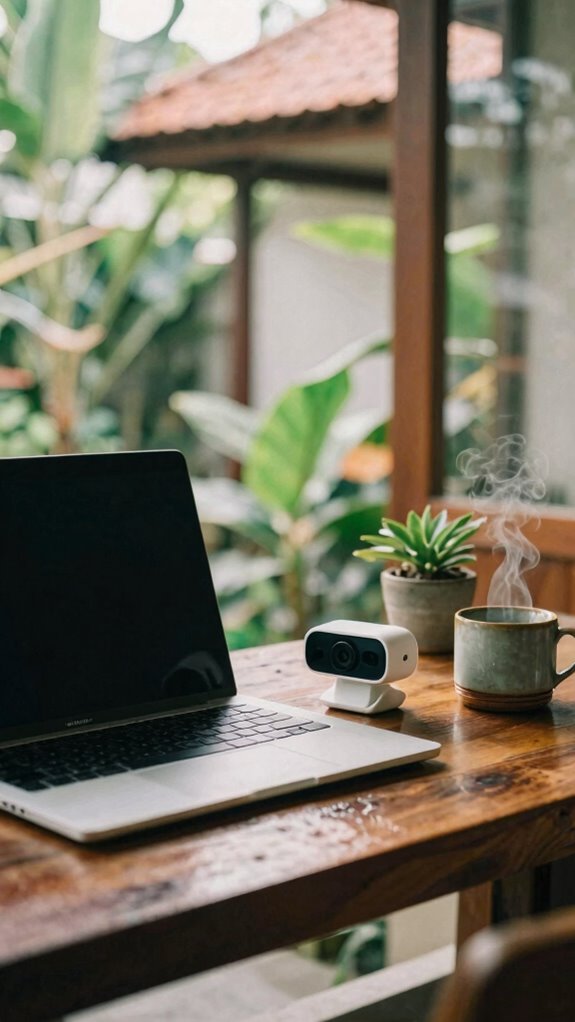
Picture you’re in Bali, working remote, trying to nail that high-stakes Zoom from your airy co-working spot—killer view, infinite Wi-Fi, and everyone’s thinking you hacked the Matrix for clarity. So, which camera fits your scenario? A privacy shutter feature can be essential for added security during sensitive meetings.
- Meeting Owl 4+ – Perfect for those “let’s-see-it-all” roundtables, spinning 360 degrees but still keeping focus sharp.
- Jabra PanaCast 50 – Wide, distortion-free 180°, ideal for collaborative brainstorms that require everyone to feel seen and heard.
- OBSBOT Tiny 4K – Great for solo power moves; AI auto-tracking with gesture control keeps you front and center without fuss—think of it as your digital bodyguard.
- Cisco Webex Desk Camera – Best for *essential* client pitches—vibrant color, facial recognition, the works.
Choosing A High End Webcam
Ever wondered what makes a webcam truly high-end and worth it for that professional edge? It’s all about power moves — crystal clarity, wide angles, and AI wizardry. Unlike your old office camera that made you look like a blurry ghost, top-tier cams like the Logitech Brio or PTZOptics zoom and track your vibe perfectly. Achieving clear visuals in various lighting conditions also depends on understanding your environment and viewing your laptop screen clearly in sunlight.
Here’s a quick cheat sheet:
| Features | Best Use Case | Tips |
|---|---|---|
| 4K Resolution | Sharp visuals | Get a high-speed USB cable |
| AI Auto-Tracking | Dynamic presentations | Mount at eye level |
| Wide FOV | Group collabs | Position above or below |
| Vibrant Color | Looks professional | Go for HDR support |
| Low Light Tech | Day or night recording | Add external lighting |
Invest in HD Webcam Upgrades
Think about it — your old webcam probably looked like it was filmed through a foggy window, right?
Time to upgrade if you want that power look.
Here’s what you gotta do:
- Choose 4K for clarity — like seeing every detail in a boss-level presentation.
- Pick models with HDR and low-light perks — no more hiding behind poorly-lit Zoom calls.
- Invest in a solid mount — position it perfectly for maximum eye contact, not looking down like you’re hiding secrets.
- Snag a high-speed USB cable — no lag or buffering, just seamless flow like you’re in the same room.
- Consider a wide-angle lens to capture more of your environment and improve your professional presence, especially if you want to emulate those top wide-angle webcams.
- Look for webcams with adjustable focus and image stabilization — these features can greatly enhance your overall video quality and ensure a professional appearance in every call.
Premium Performer in Teleconferencing
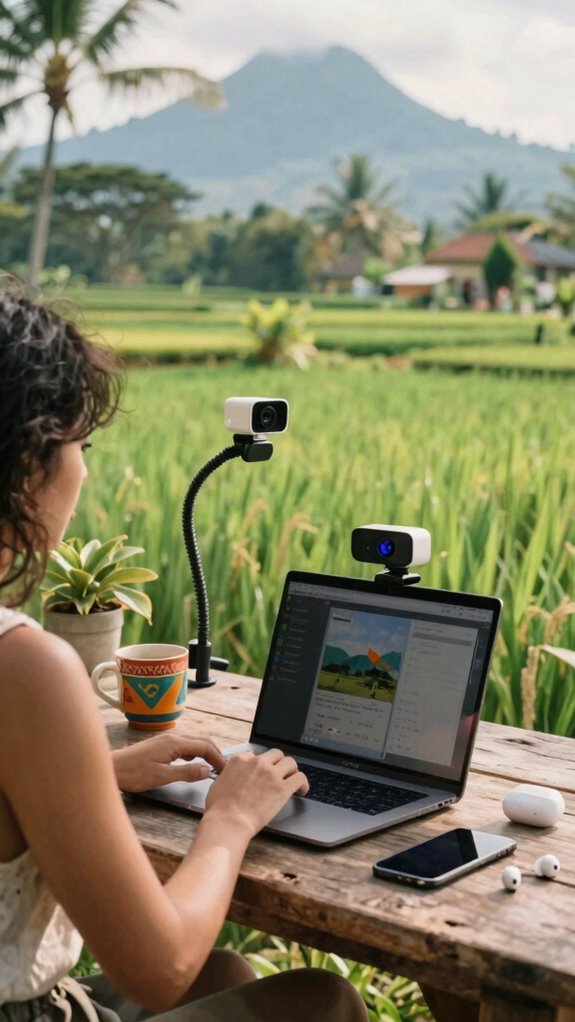
Stepping up your teleconferencing game isn’t just about swapping out that grainy webcam for a shiny 4K unit; it’s about owning the virtual room like an IT ninja.
Think back to that time at your old desk—your boss’s 1080p cam barely showed your face, and the lighting? Nightmare. Now, picture having a tool that commands respect—like the Cisco Webex Desk Camera—bright colors, sharp details, facial recognition, all in crystal-clear 4K.
Want to look powerful? Mount it at eye level, avoid looking down or up—seriously, no one needs to see your nostrils or forehead.
With AI auto-tracking, you become the star of the show, even if your cat sabotages your PowerPoint. Tweak your setup, own your space, and finally, leave those outdated cubicles in the dust.
To fully utilize your DSLR as a webcam, understanding camera setup is crucial for achieving professional-quality video. Additionally, selecting the right video optics can dramatically improve your remote presence, making your setup both versatile and impressive.
High-Resolution Lens Options
Alright, let’s cut to the chase—your camera lens is basically the eye of your whole virtual presence.
Imagine this:
- A sharp, crystal-clear 4K resolution, so every pixel screams premium. High-definition clarity makes a significant difference in how professional your image looks.
- Ultra-wide field-of-view, giving your audience a power move—like you’re in a command center.
- Advanced auto-focus, locking onto your face even if you’re pacing like a boss. The autofocus performance is crucial for maintaining sharp imagery during dynamic movement.
- Low-light HDR performance, because who wants a grainy, shadowy mess?
Forget those outdated webcams—get a lens that screams authority. Mount it high, at eye level, and be the star of your own digital empire.
FAQ
How Does AI Auto-Tracking Improve Remote Meeting Experiences?
AI auto-tracking turns your camera into a smart sidekick, lockstep with your every move. Recall those awkward moments, trying to catch your boss’s eye? No more. It keeps you centered, switching focus seamlessly—think Spielberg but for Zoom calls.
Just set it, forget it. You’ll look confident, in control, even if your Wi-Fi drops out (again). It’s like having a laser-focused camera assistant, freeing you to actually lead.
What Factors Influence the Optimal Mounting Height for a Camera?
Ever noticed how the goldilocks zone for a camera’s height is like finding the perfect Wi-Fi signal? Too high, and you look like a ghost on the screen. Too low, you’re staring up everyone’s nose. Aim for eye-level—imagine straightening your lens like a sniper setting up for precision shots.
Think of it like a sitcom—everyone needs the perfect ‘framing’ to brag about their genius. Got it? Good. Now, go elevate that camera like a boss.
Can These 4K Cameras Integrate With Existing Conferencing Software?
Yes, these 4K cameras totally integrate with existing conferencing software—think Zoom, Teams, Webex. Just connect via a high-speed USB or HDMI, then tweak settings in the app.
Some, like the Jabra PanaCast 50 or Logitech Brio, even auto-detect your moves and focus on your mug.
Recall freelancing from that Bali café? It’s seamless, no drama—just plug, play, and remind your old boss how tech-savvy you really are.
How Does Low-Light Performance Vary Between Different Camera Models?
Low-light prowess varies wildly. Cameras like the Logitech Brio 4K Pro shine, thanks to HDR support and smart sensor tech, even in Bali’s dimly lit cafes.
Others, like the Nearity 360 Alien, struggle without extra lighting, turning your face into a shadow puppet.
Want crystal-clear pics during those midnight brainstorms? Invest in models with advanced low-light features, or you’ll look like you’re live from a cave—no joke.
Are Wireless or Wired Connections Better for 4K Remote Presence Cameras?
Wireless or wired? It’s like choosing between a blazing trail or a steady highway.
For 4K remote presence, wired connections rule—think LAN, not Wi-Fi lag shadows. You get zero hiccups, minimal latency, and crystal-clear streams, even when you’re sharing your Bali beach view with your boss.
Wireless? Sure, slick, but unreliable in power outages or congested networks—like trusting your favorite office chair to stay comfy during a hurricane!
Buck up, invest in Ethernet—your clarity depends on it.
References
- https://www.videomaker.com/buyers-guide/the-best-ptz-cameras/
- https://myelearningworld.com/best-video-conferencing-cameras/
- https://www.obsbot.com/blog/video-conferencing/video-conferencing-cameras
- https://www.g2.com/categories/remote-video-support
- https://www.newegg.com/p/0ZU-00E5-00001
- https://www.youtube.com/watch?v=jysGTbTQyso
- https://www.getapp.com/it-communications-software/video-conferencing/f/remote-control/
- https://www.zdnet.com/article/best-telepresence-robot/
- https://www.nearhub.us/au/blog/top-6-conference-camera-consulting
- https://www.youtube.com/watch?v=JmlUdQPD1pE