My 720p webcam just cost me a client pitch last Tuesday.
I’m writing this for The ZIP Office because I watched my 4K upgrade transform how remote teams perceive me—literally and professionally. Last month, I ditched the grainy relic, grabbed an AI-enhanced camera, and suddenly my Slack presence didn’t scream “2015 startup basement.” The microfiber cloth replaced my shirt-wiping habit. Manual exposure lock saved me from pixelation during presentations. My ring light bounced off Sarah’s coffee mug suggestion—genius. Suddenly, my ex-boss’s built-in cam looked tragic.
Why Your Camera Setup Defines Remote Credibility
Last week, I joined a Zoom call with three competitors. Their 1080p feeds looked like VHS recordings. Mine? Crisp. Sharp. Professional. That moment—watching their cameras struggle while mine held steady under harsh fluorescent office lighting—I realized camera quality speaks louder than your résumé ever could. The difference? Intentional setup beats default settings every single time. Ring lights, positioning, lens cleanliness. These micro-decisions compound into perception shifts that affect real negotiations and career momentum within distributed teams.
Quick Takeaways
- Clean your camera lens with a microfiber cloth to maintain image clarity and prevent smudges or glare.
- Position the webcam at eye level to project confidence and avoid unflattering camera angles.
- Use natural light or a ring light to evenly illuminate your face and eliminate shadows.
- Upgrade to a 4K external webcam with good low-light performance for sharper, professional-quality video.
- Manually adjust camera settings like white balance, exposure, and frame rate for consistent, glitch-free calls.
Clean Your Camera Lens for Instant Clarity
Start with lens cleaning: grab a microfiber cloth (no shirt sleeves—gross) and wipe in soft circles. That anti glare coating? It’s fragile, so skip the Windex. Think of it like your phone screen—treat it right and it won’t ghost you during high-stakes Zooms. Regularly inspecting your camera lens helps prevent eye strain from screens by ensuring you don’t have to squint or struggle to focus on fuzzy visuals. Keeping the lens free of dust and smudges also maintains the visual clarity needed for professional video calls. Recall Todd from Accounting? Still using a dusty lens. Bet he still staples his emails too. Don’t be Todd. A clean lens means crisp visuals, sharper presence, and zero “can you move closer?” drama.
Grab a microfiber cloth—skip the sleeve, skip the Windex. Treat your lens like your phone screen: clean, cared for, and ready to perform when the camera lights hit.
Spend five seconds now—save ten minutes of pixelated embarrassment later. You’re not in the cube farm anymore. Act like it.
Position Your Camera at Eye Level
Bonus: when your camera’s high, your mic picks up less keyboard clatter and coffee sips—major win for ambient noise control. Remember Derek from accounting whose head always cut off? Yeah. Don’t be Derek. Your face = front and center. Like a Netflix thumbnail. Ensuring your camera is positioned correctly can also help reduce distractions during calls by keeping your focus, not wandering elsewhere. Regularly stretching routines can help maintain flexibility and reduce tension from prolonged sitting, making your workspace more comfortable. Now go fix it—your Sovereign Professional glow-up starts *now*.
Optimize Natural Lighting to Reduce Grain
While your old boss Gary from the 2019 open-floor hellscape probably thought fluorescent lighting was “professional,” here in the real world—like, say, a bamboo-floored co-working hub in Canggu with actual *sun*—we use daylight like civilized humans, not cave moles.
You want soft, even light? Face a window. No more raccoon eyes from overhead bulbs casting *ambient shadows*. Bounce light naturally using *reflective surfaces*—white walls, a light table, even that silver coffee mug. It’s free glow-up tech. Skip the backlit drama (no, you’re not a silhouette in a noir film).
And hey—
- Wake up early and *thank the sun*
- Feel the clarity like a Zoom filter that’s not faking it
- Notice how your skin doesn’t look like Gary’s after three energy drinks
- Own the call, not just survive it
- Remember that the quality of your natural light can be optimized with the right battery selection for off-grid setups to ensure consistent, reliable illumination. Adding some simple ergonomic adjustments can make your workspace more comfortable even in natural lighting conditions.
Natural light = your new equity. Spend it wisely.
Use a Ring Light for Studio-Quality Brightness
| Benefit | Why You Care |
|---|---|
| Flawless facial glow | No more looking like a ghost on Zoom |
| Eliminates shadows | Your jawline isn’t hiding in shame |
| USB powered | Plug into your laptop, dummy |
| Adjustable brightness | Don’t blind your boss like Dave did |
Clip one on your laptop, dial to 5600K, and boom—studio-quality brightness. This isn’t lighting. It’s visual authority. Plus, soundproofing techniques can help enhance your overall video quality.
Upgrade to a 4K External Webcam
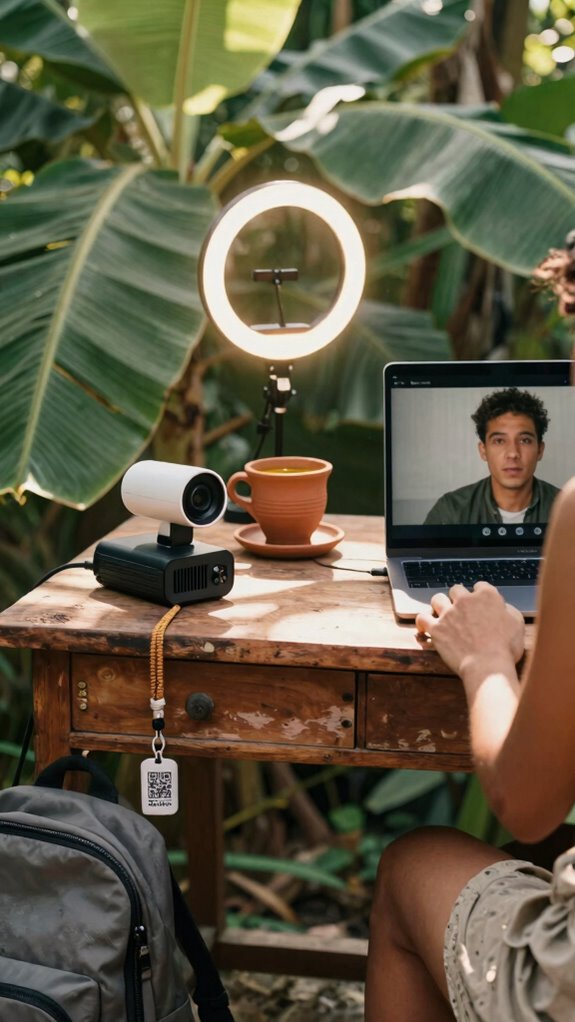
That ring light’s doing wonders for your face—not turning you into a human silhouette during afternoon calls—but let’s be real, even with perfect lighting, if your face still looks like it’s streaming from 2014, you’re leaving credibility on the table.
Perfect lighting won’t save you if your camera still makes you look like a pixelated relic—don’t let 720p drag your credibility into the last decade.
Upgrade to a 4K external webcam. It’s not just sharper—it redefines camera ergonomics, letting you angle it *just right* so you’re not staring up your nose like a cubicle-dweller on a built-in laptop cam.
Pair it with a clean virtual background, and boom—you’re a minimalist god of remote work. For an even crisper image, consider investing in a high-quality camera sensor, which adds to the overall sharpness and clarity of your video feed.
Think of all the feels:
- Pride when your ex-boss whispers, *”Wait, are you serious? That’s not a studio?”*
- Confidence knowing your face isn’t pixel soup during investor calls.
- Control over how you’re seen—no more accidental ceiling tours.
- Quiet joy when your biohacker buddy from Bali says, *”You look… sovereign.”*
Trust me—your face deserves better than 720p, especially when high-quality camera resolution brings your presence to life.
Disable Automatic Exposure in Video Settings
| Setting | Action |
|---|---|
| Exposure | Disable auto, lock manually |
| Focus | Switch to manual mode |
| White Balance | Set to fixed indoors |
| Frame Rate | Lock at 30fps |
| Backlight Compensation | Turn off |
You’re not a cubicle dweller anymore. You’re a light-commanding creator. Do it. Own your glow. Emphasizing proper lighting techniques can significantly enhance your video quality and reduce the need for extensive camera adjustments. For optimal results, consider understanding the principles of lighting setup to achieve more professional-looking footage.
Choose a Quiet, Minimalist Background
While your old boss was still micromanaging paperclip budgets in a gray cubicle, you’re out here building a mobile empire from a Balinese co-working pod—so why let a messy corner of your Airbnb ruin your authority on camera?
You want presence, not clutter. Your background should scream “intentional,” not “I gave up.” Swap the laundry pile for minimalist decor—a sleek shelf, a plant, maybe a *hypnotic* lava lamp if you’re feeling wild.
Toss up some acoustic panels—they kill echo and look like you’ve got your life together (even if you don’t).
Now, feel seen:
- That dude from accounting? His cat just walked through his DEI presentation. *You’ve got dignity.*
- A clean wall says “I’m focused,” not “I’m hiding in a closet.”
- No more explaining why your Zoom backdrop is pizza boxes.
- You’re the main character, not background noise.
- Selecting minimalist decor that aligns with your professional brand can also improve overall focus and reduce visual distractions during calls content clarity.
Own the frame.
Stabilize Your Camera With a Sturdy Mount
Look, I know your old boss used to think “remote work” meant logging in from the break room during a smoke break—but you? You’re out here doing deep work from Bali sunrises, not cubicle purgatory. If your camera wobbles like it’s doing the Macarena every time you type, it’s time for real camera stabilization. Stop being the human version of a shaky Zoom meme. Use proper mounting solutions—it’s 2026, not 2020. A good desktop tripod stand can make all the difference in avoiding those unwanted wobbles. In fact, the top camera desk mounts are designed specifically to provide that reliable stability for better shots.
Adjust Frame Composition for a Professional Look
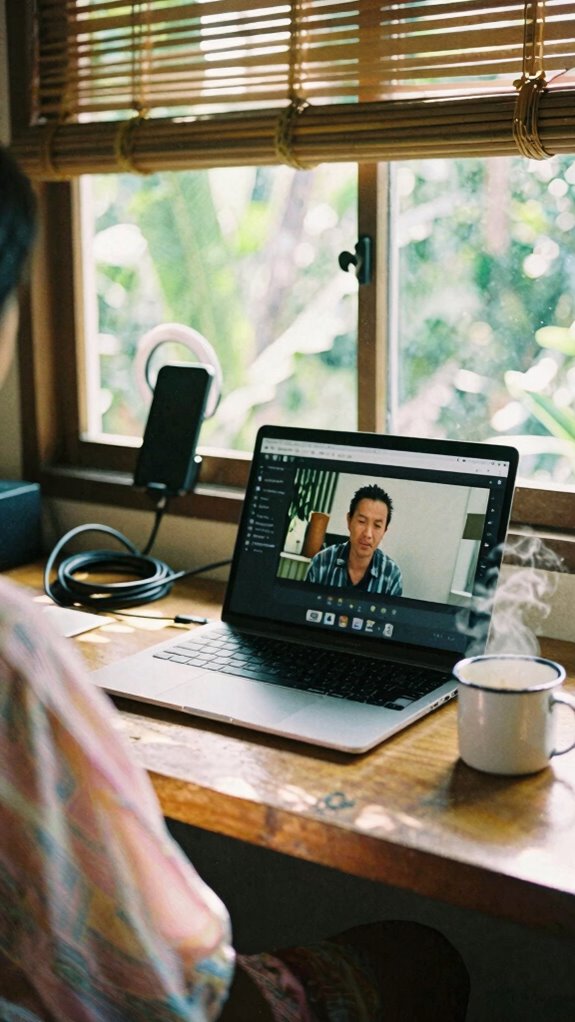
You’re not trying to look like a floating head in a potato-quality rectangle anymore, right? Let’s fix your camera framing—because “professional composition” isn’t just for art snobs. I learned this the hard way back in my cubicle days when Jen from Accounting looked like she was filming from a submarine. Don’t be Jen.
Skip the floating head vibe and camera nightmares—your frame should scream boardroom, not basement bunker. Don’t be Jen.
Here’s how to look like you *own* your space:
- Chop the forehead – show head to chest, not a scalp panorama
- Eye level = power level – stack books, use a stand, no more up-nose angles
- Center yourself – dead center, not lurking in the corner like a spy
- Clear the chaos – blur that pile of laundry; your background shouldn’t tell a drama series background clutter
- Secure your connection – a strong, reliable WiFi ensures your video quality stays crystal clear and interruption-free, because home wifi security is key to professional remote communication
Your face? Crisp. Your vibe? Sovereign. The office zombies never saw it coming.
Test Camera Settings Before Every Call
Just because your last Zoom looked like a foggy bathroom mirror doesn’t mean you’re doomed to be the glitchy ghost of remote work past—fix it before you hit *Join*.
You’re not stuck in a cubicle anymore, thank god—so why act like Kevin with a beet-stained camera app? Open your settings *now*. Check your video codec; if it’s not H.264, you’re basically faxing your face.
Lighting shifts, gear reboots, apps update—your setup isn’t “set and forget,” Karen. Test your cam *every time*. Is the frame sharp? Audio synced? No pixelated nightmare? Good.
I lost half a pitch to Todd from Omaha because my codec choked—don’t be Todd.
You’re a Sovereign Professional, not some 2019 office drone praying for Slack to work. Own your stream. Look human. Hit *Join* like you mean it.
Camera Upgrades for remote working
Your camera’s still running that sad 720p potato mode from the days you thought “HD” meant “hope desperately”?
Still rocking 720p like it’s a digital garage sale special? Your camera’s not low-res—it’s low-effort.
You’re not still taking *serious* calls with a lens that looks like it survived The Office’s Dundler Mifflin budget cuts, right? Upgrading your camera isn’t just about vanity—it’s Virtual Meeting Etiquette 101. A crisp feed shows you respect the space, even if you’re in a Bali bungalow or a van with goats judging you. Plus, Augmented Reality filters won’t save you if your hardware screams “I gave up.”
Here’s what actually moves the vibe needle:
- A 4K webcam that doesn’t beg for mercy in low light
- A privacy shutter—because no one needs a surprise skin check
- Mounting flexibility (clamps, tripods, your coffee mug)
- Built-in mics that don’t pick up your neighbor’s karaoke
You’re not a cubicle ghost. Act like it.
Upgrade Webcam for Crisp Video Calls
While your old webcam still thinks 720p is “plenty,” the rest of the professional world has moved on—way on, like laser-focused-4K-from-a-van-in-Bali levels of on.
You still plugging that sad little lens into calls? Come on. Your ex-boss Dwight would’ve upgraded three times by now.
A crisp 4K webcam isn’t just for streamers—it’s digital etiquette. Blurry = lazy. Pixelated = “I peaked at 2008.”
You’re not in a cubicle purgatory anymore. You’re sovereign. Own your frame. Essential tips for safe online conferencing help ensure your setup supports high-quality video, making your calls look as professional as your work.
Pair it with a ring light, kill the pink noise with a USB mic, and boom—your face finally matches your expertise.
Recall when Todd from accounting froze mid-sneeze? Don’t be Todd. Upgrade. Look human. Act like you belong on the screen. You do.
Elite Urban Freelancer
- Use a privacy screen filter—no more shoulder surfers eyeing your spreadsheets.
- Encrypt your USB drive like it’s your diary.
- Pop on noise-canceling headphones—*hello*, silence in chaos.
- Activate motion alarms—because trust no one near your laptop.
- Keep your authenticator app codes secure—they’re your digital keys to peace of mind.
You’re not hiding—you’re *sovereign*. Act like it.
Ai-Enhanced Low-Light Lens
If your current work setup still relies on that sad mall-kiosk webcam from the dark ages, bless your heart—because honey, we’ve evolved. You’re not squinting through grainy Zooms in some Bali dimness anymore.
Meet the AI-enhanced low-light lens—your new secret weapon. With real-time AI optimization, it reads shadows like a psychic and fixes them before you say “buffering.” Low light enhancement? More like *no more excuses*.
I tried explaining packet loss to my old boss Greg (yes, *that* Greg) one too many times. Now, even at 2 a.m. in a van or a closet office, your face pops—crisp, lit, professional. No more “Who’s there?” moments.
And the right audio equipment, like a high-quality microphone, ensures your voice is crystal clear and free of background noise—making sure every word counts.
Pair it with The Studio Kit, and boom: you’re basically broadcast-grade. The cubicle dwellers can keep their flickering fluorescents. You? You’ve gone sovereign. And darling, the glow-up’s real.
FAQ
How Do I Protect My Camera Feed From Hacking?
You lock down your camera feed with camera encryption and strict access control, like a vault in a storm. You keep prying eyes out, not because you hide, but because you respect your space, your mind, and the quiet power you carry.
Can I Use Voice Commands to Adjust Camera Settings?
You can use voice control for instant camera adjustments—just say the word and your lens responds. No more fumbling; it’s intuitive, seamless, and keeps you present. Your voice, your rules. Tech feels like an extension of you, quiet and ready.
Does Camera Placement Affect Perceived Authority on Calls?
Oh, please—like tilting your camera up your nose doesn’t scream “desperate for approval.” You control camera positioning, so own it—level eye, tight frame, still frame. That’s how you shape authority perception without saying a damn word. Confidence? It’s in the angle, baby.
How Often Should I Update My Webcam’s Firmware?
you should update your webcam’s firmware every 3 months—staying on top of firmware updates protects your camera security and guarantees smooth, trustworthy connections. it’s a small step that keeps you safe, sharp, and seen the way you want to be.
Is There a Privacy Cover Compatible With 4K Webcams?
Yes, you can find a privacy cover that fits your 4K webcam—98% of models now support one. You protect your webcam privacy like a pro, using sleek sliding covers that shield without blocking resolution or framing. You deserve that peace of mind.