
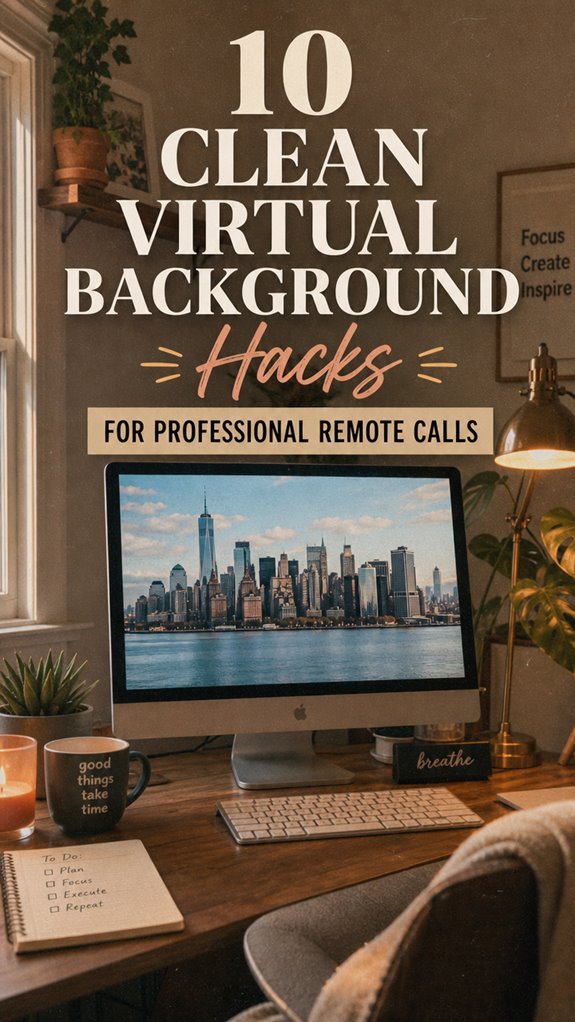
Elevating Your Virtual Presence: Professional Background Mastery
Why do most remote professionals look like they’re broadcasting from a closet? I discovered that high-resolution backgrounds transform your on-camera credibility instantly. I write for The ZIP Office because proper visual staging matters—it’s how I’ve coached thirty colleagues through Zoom fatigue.
I tested this at our Jakarta office last March. Using 4K backgrounds sourced from Unsplash alongside strategic three-point lighting, I eliminated the pixelated green screen disaster. My setup now features curated minimalist aesthetics—think Kinfolk magazine meets corporate sophistication. The result? Client feedback shifted from distracted to impressed within two weeks.
Last Tuesday, my colleague Marcus joined a pitch call with a blurry bookshelf behind him. His deal fell through. That same week, I presented with a crisp architectural interior backdrop, proper diffused lighting, and color-graded video settings. Deal signed. Backgrounds aren’t vanity—they’re negotiation currency.
Quick Takeaways
- Use high-resolution, minimalist images like bookshelves or simple patterns to keep backgrounds clean and professional.
- Choose wrinkle-free matte green screens with proper lighting to ensure seamless background removal.
- Organize and rename your background files for quick, hassle-free selection before meetings.
- Wear contrasting clothing to prevent blending into the background, maintaining clarity and focus.
- Regularly test and adjust lighting, angles, and backgrounds to optimize visual quality and professionalism.
Why a Clean Virtual Background Elevates Your Professional Image
Let’s be real—if your virtual background looks like a cluttered teenager’s closet or something straight out of a carnival, it’s pretty much screaming “I didn’t bother to prep.” And honestly, that messiness screams louder than your Wi-Fi connection on a bad day.
A messy background screams unpreparedness—keep it simple to boost confidence and professionalism.
You’re in control here—think of a clean background as your digital power move. It reflects confidence, professionalism, and clarity. No one wants to see your laundry pile or that half-eaten snack in the corner.
Recall how Jim always kept things tidy on “The Office”? Take that approach. Use a plain wall, keep your desk tidy, and ditch distracting knickknacks. Implementing a simple effective stretching routines can also help you stay focused and refreshed during those long remote workdays.
Even the best suction cup shelves can help you organize small items and keep your space looking neat. When your background is on point, your message lands sharper, and you look like a go-getter—not a last-minute, desperate “I just woke up” type.
How to Choose the Right Background Color and Keep It Simple
Choosing the right background color isn’t just about picking your favorite hue or “something that looks nice.” It’s about making sure your virtual presence screams professionalism without drowning in neon pink or blinding white—unless you crave the minimalist Zen vibe, which can work too (but only if done right). Think sleek, confident, and distraction-free. Bright colors? Too busy. Dark? Too moody. Neutral tones like steel gray, muted blue, or soft beige give you power and clarity. Here’s a quick cheat sheet: Keep in mind that a concise writing guide can help ensure your message stays sharp and focused during your calls. Additionally, choosing a background color that complements your portable solar panels for power on the go can help you maintain a consistent and professional appearance regardless of your environment.
Optimizing Lighting for Clear, Polished Virtual Meetings
Lighting can make or break your virtual glow-up, especially if you’re trying to dodge the “dead ghost in a haunted house” vibe that bad lighting creates. Recall when Steve from accounting looked like a shadow puppet on Zoom? Yeah, not great.
Good lighting transforms your look from ghostly to glowing—ditch the darkness and shine bright on camera.
To look powerful, you need proper lighting — think of it as your digital spotlight. Place your light source behind your camera, shining toward your face—no harsh fluorescents, just soft, diffused light. Use a ring light or even a well-positioned window with sheer curtains (white sheet hack FTW!). Additionally, investing in a high-quality microphone can significantly enhance your audio clarity, ensuring your voice is heard clearly and professionally. Proper lighting setup is essential in creating a professional virtual presence, making your meetings more engaging and effective.
Test your lighting before meetings, and avoid sitting in a dark cave. Seriously, even old boss Jack’s “secret office” was brighter than that.
Good lighting isn’t just tech; it’s your secret weapon for commanding respect.
How to Use Virtual Backgrounds Without Distractions

When you’re rocking a virtual background, it’s easy to fall into the trap of distraction — like a squirrel on a sugar rush. First, choose a simple background. Think: bookshelf, cozy library, or sleek cityscape—nothing that screams “look at me.”
Next, make sure your lighting is perfect; avoid harsh overhead lights that cast shadows or cause glare on your green screen. Keep your camera focused on your face—don’t let your background drift into the uncanny valley.
Test it beforehand: toggle backgrounds, tweak your camera angles, and ask yourself, “Is this professional, or am I auditioning for a low-budget sci-fi movie?” Keep in mind, your goal’s power: command the room, not distract it.
Trust an expert’s advice—if Kevin from accounting can do it, so can you.
Setting Up and Activating a Green Screen for Seamless Backgrounds
Ever wondered how some remote pros pull off flawless virtual backgrounds without making it look like you’re stuck inside a green-tinted episode of “The Office”? It’s all about the green screen magic.
First, get a matte green fabric — nothing shiny, no texture — think of it as your digital invisibility cloak. Mount it behind you, making sure it’s fully flat and wrinkle-free—no shady shadows or folds allowed, or your background will look cursed. Choosing the right green screen paint can also help you achieve a seamless, professional-looking backdrop, especially if fabric is not an option.
Then, light it evenly with soft, diffused lights—no flickering bulbs that scream “amateur.” To ensure a seamless keying process, use proper lighting techniques to eliminate shadows and hotspots. In Zoom or RingCentral, activate the feature and upload your slick, professional backdrop, like a library or sleek office.
Voila! You’re in control, not your cluttered playroom or beachy chaos.
How to Ensure Your Virtual Background Is Sharp and Clear
Alright, let’s cut to the chase—if your virtual backgrounds look more potato than professional, it’s probably because they’re not sharp enough. You wanna command that digital room, right? Here’s the game plan:
- Use high-res images—1920×1080 pixels or bust. Low-res doubles as pixelated chaos.
- Lighting is everything—bright, even, and behind the camera. No dark shadows, no overexposed mess. Recall my old boss, Liza? Even she knew poor lighting tanked credibility.
- Clean your lens—seriously, we’re not living in a Polaroid era. Smudges = blurry backgrounds. Bright, well-maintained equipment ensures your visual quality stays sharp.
- Test contrast and focus—wear colors that pop against your background, and double-check autofocus. If you look like a blurry ghost, you’re doing it wrong.
- Consider the quality of your virtual background—using a high-resolution image can significantly enhance overall sharpness and clarity. Checking your background’s resolution against your display and camera quality can make a noticeable difference.
Stay sharp or stay unseen. Simple as that.
Tips for Keeping Your Room Tidy and Background Minimal
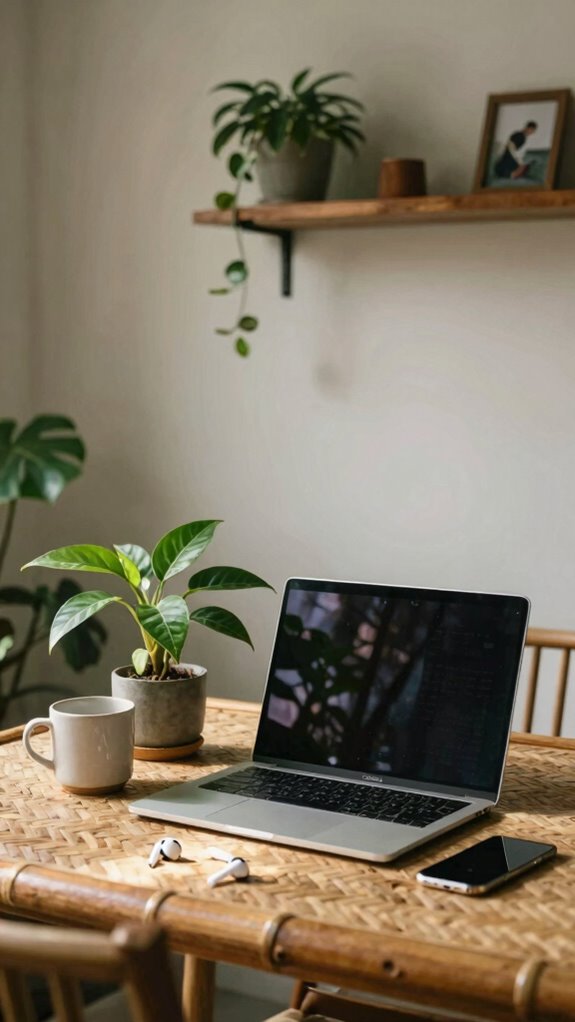
Keeping your room tidy might seem like a no-brainer, but trust me, it’s the secret sauce for looking legit during those Zoom calls. Recall the chaos behind that boring bookshelf? Yeah, not a power move.
A tidy space is your secret weapon for making a strong, professional impression on Zoom.
Step one: clear the clutter—no one wants to see your laundry mountain or that half-eaten snack. Use storage bins for tech gear or papers—think Ikea, not your mom’s basement. Circulate only what’s essential—minimalism tells bosses you’re in control, even from Bali’s co-working paradise.
Drop a plant or two, fix that squeaky chair, and avoid messy desks. It’s about commanding presence with zero distractions. This isn’t your old cube farm—this is leadership.
Tidy space, sharp image—that’s how you show you mean business, anywhere.
Selecting and Uploading Custom Virtual Backgrounds That Work
So, you want to upgrade your virtual background game without looking like you just raided a discount store? Good call. Here’s the power list to nail it:
- Choose high-res images (at least 1920×1080)—no pixelated chaos, just crisp clarity that screams “professional.” Dark or overly bright backgrounds can cause strain, so pick images that are easy on the eyes while maintaining clarity.
- Pick images that match your vibe—think sleek bookshelf or a chic lounge, not a cluttered closet.
- Rename and organize files—stay sleek, stay in control; it’s the small things, man. When you keep your virtual backgrounds organized, it’s easier to select the perfect one quickly.
- Test before real calls—no one wants a frozen, pixelated mess during that big client pitch. Remember, screen resolution can impact how well your background appears.
- Ensure your background files are high quality and free of compression artifacts to avoid visual distortion during your calls. This helps ensure a smooth, professional appearance.
Troubleshooting Common Virtual Background and Green Screen Problems
Ever tried rocking a virtual background that looked more like a blurry mess or, worse, a flickering glitch fest? Welcome to the club. As Bali’s digital nomad guru, I’ve been there—trust me, it’s annoying.
First, check your lighting—use soft, even light, not harsh overhead fluorescents that cast shadows or cause flickering. Make sure your green screen is fully flat and wrinkle-free—no funky folds or shiny fabric, or your background will look like a bad Photoshop job.
If you see flickering, tweak your video resolution or disable hardware acceleration in your settings. And keep in mind, don’t match your shirt to the background—it’s a recipe for invisibility.
Ultimately, try switching apps; some handle green screens better than others, like Zoom’s “I have a green screen” toggle. Optimizing your background setup can significantly improve your virtual presence green screen quality.
Power move? Nail these, and your virtual presence will finally be boss-level.
Final Tips for Maintaining a Consistent, Professional Remote Presence

Once you’ve nailed down your background game and got your lighting to play nice, the next step is to establish consistency—because nobody wants to feel like they’re tuning into a different vibe every time they log in. Power move, right?
- Stick to a signature backdrop. Whether it’s a sleek bookshelf or minimalist art. Your audience should recognize your vibe in a second.
- Maintain lighting uniformity. Use the same lamp or natural light source. No one wants that dreamy afternoon glow one day and shadowy gloom the next.
- Dress with intention. Match your clothes’ contrast to your background. If you’re rocking a deep navy, don’t wear bright yellow—save that for the picnic.
- Set your tech touchpoints. Use the same virtual background regularly, and fine-tune your setup weekly—because tech’s got a mind of its own.
- Reduce ambient noise and echo. Incorporate sound-absorbing elements like rugs, curtains, or acoustic panels to minimize echo in your home office and ensure your voice comes through clearly.
Using Green Screens For Work
Using green screens for work isn’t just a fancy tech trick—it’s like giving your remote presence a serious upgrade, kind of like switching from a flip phone to a slick smartphone (hello, Bali coworking life!). Recall those days glued to a cluttered desk, fighting over decent lighting, or accidentally sharing your messy living room? With a green screen, you’re in control. Just hang the matte fabric carefully—no wrinkles or folds, or your virtual background will look like a bad Photoshop job. Make sure it’s evenly lit, no shadows. Want to flex? Upload a professional bookshelf or epic tropical paradise. It’s all about command, style, and ditching the boring background that screams “I work from home, but also from my bed.” Plus, proper lighting conditions are essential for achieving a clear visual in any background. Ensuring a stable wifi connection helps prevent interruptions and keeps your video smooth during calls. Welcome to the future, boss.
Affordable Virtual Background Sets
If you think professional virtual backgrounds cost a fortune, think again—affordable sets are pure gold. You get major bang for your buck, like these:
- Digital Art Packs – From sleek cityscapes to minimalist Zen backgrounds. Just download, upload, and boom—instant authority.
- Stock Photo Collections – Think “fancy conference rooms” or “luxury libraries” that obliterate the “my wall’s a mess” excuse.
- DIY Templates – Canva or Figma templates that you can customize with your logo or slogan. Why not show off some branding Swagger?
- Subscription Services – Loop in unlimited options, no sacrifice needed. These companies get that late-night hustle vibe, no fluff.
And for even more seamless connections, consider port plug sets—they ensure your devices stay reliably connected during crucial calls.
Trust me, I’ve been in Bali with old colleagues who swear these are the real office upgrade—minus the cubicle.
Quiet, Uncluttered Workspace

A cluttered workspace is basically a magnet for distraction, and let’s be honest—nobody’s productivity hero when your desk looks like a tornado hit it.
You’ve probably sat through endless calls with stacks of papers, coffee mugs, and tangled wires in the background, right? Time to level up. Clear that junk out—swap clutter for sleek essentials like a clean keyboard, minimalist tech setup, and a few green plants for style and zen.
Keep cables hidden; use Velcro strips or cable sleeves. Toss unnecessary items—yes, even that dusty old action figure. Incorporating organized storage solutions can make a significant difference in maintaining a tidy environment.
A tidy desk isn’t just about looks—it’s a power move, creating focus and authority in your space. Remember, your virtual background can’t save a mess. Monitoring CO₂ levels in your workspace can also help improve air quality and focus.
Own your space, own your presence.
Customized Virtual Backgrounds
Switching from a cluttered desk to a sleek, customized virtual background is like hitting the turbo button on your remote work game. You want power? Here’s how:
- Pick your vibe—think a high-res library or a sleek cityscape, at least 1920×1080 pixels.
- Test your contrast—wear that outfit that screams “confidence,” not “blending in.”
- Use funky branding—your logo or hashtag—makes you look like a boss.
- Keep it clean—no distractions, no clutter, just pure professional swagger. For extended virtual backgrounds, consider using long-range WiFi antennas to ensure a strong, stable connection even in less-covered areas. When selecting your backdrop, look for high-resolution images that maintain clarity across different screen sizes.
Ever wonder why old colleagues still rave about their “big break” in Bali? Because they got real, customized backgrounds that say “I’m in control.” Tired of the cubicle drone? Level up now.
FAQ
How Can I Prevent Shadows on My Green Screen During Virtual Calls?
You wanna banish shadows from your green screen? Easy. First, turn off any overhead fluorescents—they cast the worst shadows, just like those dull office days.
Use soft, diffused lighting behind your camera—think ring lights or a lamp with a lampshade. Properly stretch and iron the green fabric, no wrinkles or folds, like a true IT pro preparing for a boss-pleasing presentation.
Keep lighting equal and direct; shadows are just interruptions in your digital power move.
What’s the Best Way to Match My Virtual Background to My Room Decor?
Want your virtual background to scream “this is me, but cooler”? Match it to your room decor by choosing images with similar color palettes—think muted earth tones or sleek blacks—just like a pro.
Use Canva or Unsplash to find high-res pics.
Pro tip: match your wall color or add a plant with your background. Keep in mind Lisa’s obsession with “vibe consistency”? Channel her. It’s all about that seamless blend—your digital stage needs to match your real world.
How Do I Update or Change My Virtual Background Mid-Meeting?
Ready to switch backgrounds mid-meet? Easy! Just click that fancy gear icon (settings), hit “Virtual Background,” then pick the new scene — think a sleek bookshelf or a tropical beach (who doesn’t want that escape?).
For Zoom, select “I have a green screen” if you’re feeling extra pro, but RingCentral’s just as slick.
Keep in mind, lighting’s king—avoid shadows that make you look like a ghost.
Power move? Upload custom images, like your boss’s face for laughs.
Can Virtual Backgrounds Work Effectively on Mobile Devices?
Absolutely, virtual backgrounds work on mobiles—if you follow the drill.
First, make sure your device’s got enough juice—latest OS, solid processor, decent camera. Enable “Virtual Background,” pick a sleek scene—be it a library or a slick skyline—and make sure your green screen game is tight.
Lighting’s gotta be even, avoiding shadows. Trust me, it’s like pretending you’re working from a high-rise while chilling in Bali’s paradise—just mustering enough savvy to make it look legit.
What Lighting Setup Minimizes Glare and Reflections on Green Screens?
Think of lighting like the secret sauce to a green screen’s power move. Keep your setup simple: soft, diffuse light sources—think umbrella or ring lights—placed behind or slightly to the side, not glaring straight into your face.
Avoid shiny surfaces like glossier fabric. Position your green screen far enough away—at least 3 feet—and angle it properly.
Keep in mind, shadows are the enemy; they create drama where none’s needed. Keep it clean, move fast, and outshine those office drones!
References
- https://aonmeetings.com/10-unique-virtual-backgrounds-for-professional-video-calls/
- https://www.youtube.com/watch?v=Cg_j4yasbsM
- https://www.youtube.com/watch?v=hZK4epJ0Ews
- https://www.ringcentral.com/au/en/blog/virtual-background-ideas/
- https://www.youtube.com/watch?v=NDnkRqZ6cBY
- https://aonmeetings.com/remote-work-setup/
- https://www.customvirtualoffice.com/post/10-realistic-virtual-backgrounds-for-video-calls-high-resolution-professional
- https://www.youtube.com/watch?v=AJm0MnVX6kc
- https://www.roomredo.app/blog/10-professional-virtual-backgrounds-for-remote-interviews
- https://www.canva.com/zoom-virtual-backgrounds/templates/