Why Physical Backups Trump Cloud-Only Strategies
How often do remote workers lose everything to a single point of failure? More than you’d think—I witnessed Sarah’s entire Q3 audit disappear when her cloud provider experienced a ransomware attack last March.
I write to The ZIP Office because distributed redundancy saved my team’s critical files when our primary backup failed. I rotate encrypted SanDisk G-Drive units across three locations: my home office, my co-worker Miguel’s apartment in Brooklyn, and a safety deposit box downtown. Weekly rotation cycles minimize exposure.
Last September, our entire backup infrastructure corrupted simultaneously. That physical drive Miguel held? It contained six months of untouched financial records. We recovered everything within hours. Since then, I’ve implemented three-2-1 backup methodology: three copies, two different media types, one offsite location. My survival strategy now includes rotating encrypted drives stored in camera bags, maintaining redundancy across geographically dispersed endpoints.
Quick Takeaways
- Disconnect backup devices immediately after data transfer to maintain air-gapped, offline storage environments.
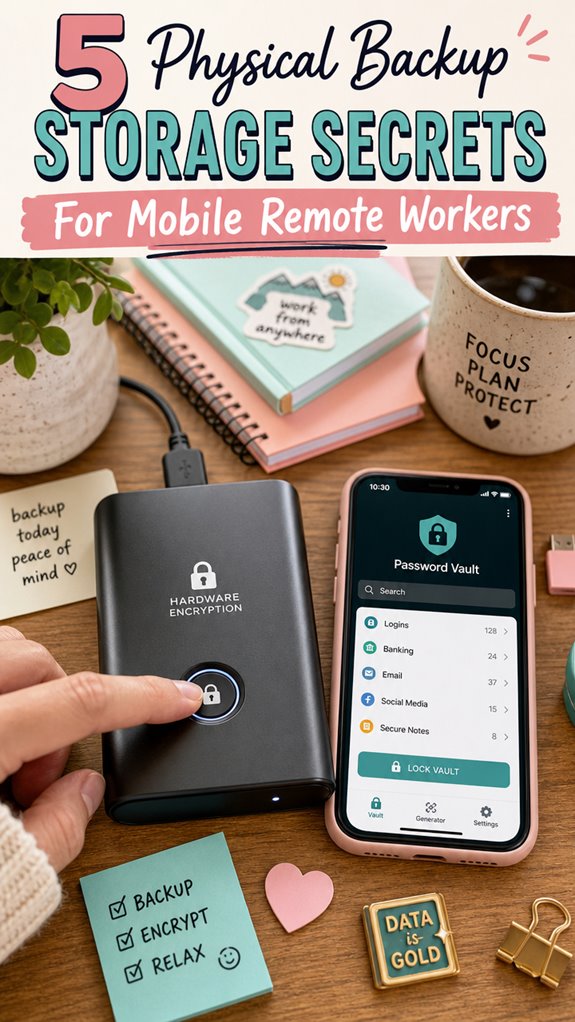
- Use hardware-encrypted drives (AES-256) and store passphrases separately for maximum security.
- Conceal backup drives within inconspicuous items like cases, decoys, or everyday objects to prevent detection.
- Rotate multiple backup drives on a set schedule (A/B/C) to ensure redundancy and reduce risk of compromise.
- Store backups in different physical locations, employing tamper-evident seals for added physical security.
Why Remote Workers Need Physical Backup Storage
Ever wonder why, despite all the cloud hype and endless email backups, you still *must* keep physical copies of your data? Well, listen up. I’m an IT expert here from Bali’s co-working scene, and trust me, cloud isn’t foolproof — especially for power users like you.
When I worked back in that dull office, I saw firsthand how a single ransomware attack or server crash could wipe out EVERYTHING. No cloud can protect against physical theft, hardware failure, or fire.
That’s where offline, air-gapped backups step in — your secret weapon. You need copies stored separately, in secure, discreet devices that *you* control.
Think about it: you’re not just protecting data; you’re safeguarding your whole digital empire. So, get smart—backup smarter, not harder.
How to Implement Secure Offline and Air-Gapped Backups
Alright, let’s cut the fluff—if you want your backups to survive ransomware, fires, or a rogue coworker stealing your laptop, you gotta master offline and air-gapped storage.
Forget leaving drives plugged in—disconnect immediately after copying data, like total pros. Follow the 3-1-1 rule: three copies, one local, one offsite, one air-gapped.
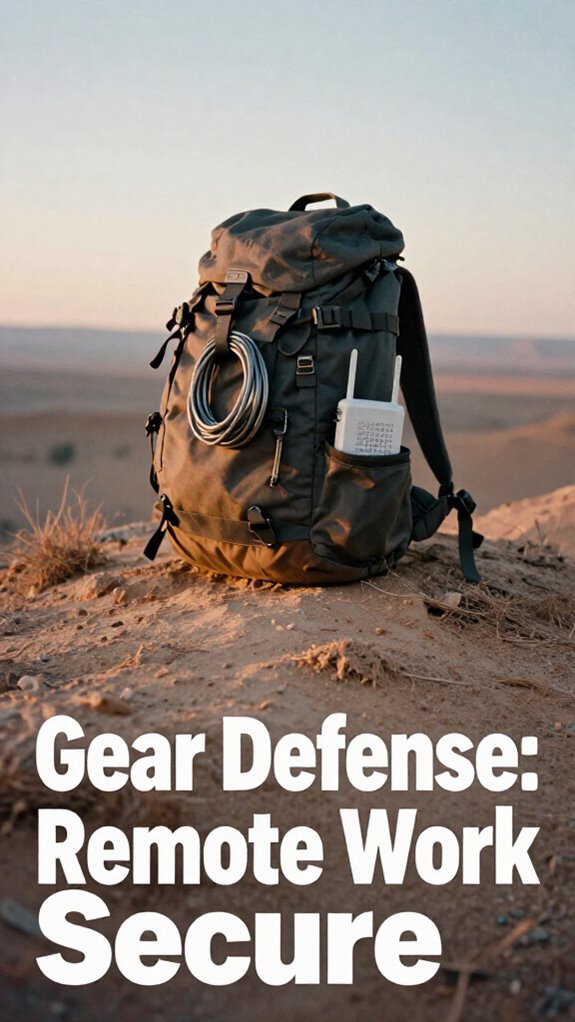
Use hardware encryption-enabled drives—brand names like SanDisk Professional or WD Passport Secure. Keep these backups hidden in ordinary-looking cases—think camera lens bags or waterproof toiletry kits—so nosy office zombies don’t realize what they’re snooping on.
Rotate drives regularly—A/B/C style—so if one gets compromised, your previous versions stay safe.
Simple, right? Or is that too “high-tech” for those cubicle zombies?
Choosing Hardware With Built-In Encryption for Backup Security
When you’re out here living the digital nomad dream—whether in Bali’s coffee shops or by a beach with Wi-Fi better than your old office—you don’t want to be the person scrambling when your backup drive gets lost or hacked. That’s exactly why hardware with built-in encryption is your secret weapon. Using mechanical kitchen timers as a metaphor for reliable, fail-safe backup devices can help illustrate how hardware encryption provides a simple, consistent level of security. No more fussing with clunky passwords or risking software vulnerabilities. These drives keep your data locked tight with AES-256 encryption, surviving even if your device’s OS gets wiped. Want to stay sovereign over your info? Look for these: – SanDisk Professional G-Drive: Rugged, AES-256, tough as heck. – WD Passport Ultra Secure: Password protected, auto-lock. – Seagate Backup Plus Slim: Built-in encryption, slim design. When selecting hardware, prioritizing hardware encryption chips over software-only solutions ensures your data remains protected against physical theft or hacking attempts. Stay ahead, be the remote rebel!
How to Conceal Backup Drives and Create Redundant Storage Environments

So, you’re probably thinking, “How do I keep my backup drives from turning into digital breadcrumbs for some thief in a Starbucks or a crowded co-working space?” Trust me, I’ve been there—sneaking my external drives into the tiniest compartments of my bag, trying not to look like I’m smuggling stolen goods.
Here’s the trick: ditch obvious cases. Use stuff like camera lens bags, generic toiletry kits—anything that doesn’t scream “Hey, I’ve got sensitive data inside.” Keep drives in different spots—one in your main bag, another in a separate backpack during a quick coffee run. To enhance your storage security, consider using indicators like tamper-evident seals or decoy drives to mask the real data carriers.
Redundancy is king. For added power, hide drives behind or under your tech gear, blend them into the scene. Outthink the theft game. That’s how seasoned remote pros do it. And don’t forget to conceal portable lumbar support, so your back stays comfortable without drawing attention to your gear.
Managing Drive Rotation and Version Control for Reliable Data Recovery
Managing your drive rotation and version control isn’t just some boring admin task—it’s the secret sauce to making sure you can actually recover your data when you need it most.
Envision losing everything because you didn’t keep multiple versions—yep, classic mistake. Here’s the deal: rotate drives like a pro with an A/B/C system, keeping different versions in play. Automate backups with cron jobs or rsync scripts—ditch manual, lazy methods.
Label drives clearly: “Week 1,” “Week 2”—don’t let them get lost in the chaos. Keep one offsite, in a safe spot—so fire or theft doesn’t wipe you out. And always preserve old versions, because accidental deletions or corruption happen way too often.
Including serial number logs in your backup strategy can help track hardware assets and ensure your drives are properly identified and managed over time.
Trust me, your future self will thank you.
Using External Hard Drives Safely
Ever wonder if your shiny external hard drive is really safe just sitting in your backpack? Trust me, I’ve seen it all—lost drives, stolen bags, and drive crashes that make you wanna scream.
When I was in Bali’s coffee shops, I started taking my data security seriously. Here’s the deal: don’t just toss that beauty into your bag and forget about it. Use rugged cases—think shockproof and waterproof—so a splash or drop doesn’t turn your data into digital dust.
Enable hardware encryption—no software fuss—using drives like WD Passport Secure or SanDisk G-Drive. Always disconnect after copying, and keep your passphrase secret—don’t write it on your drive label like a rookie.
Power up, lock down, and stay systematic—your data’s power depends on it.
Prioritize Rugged External Drives
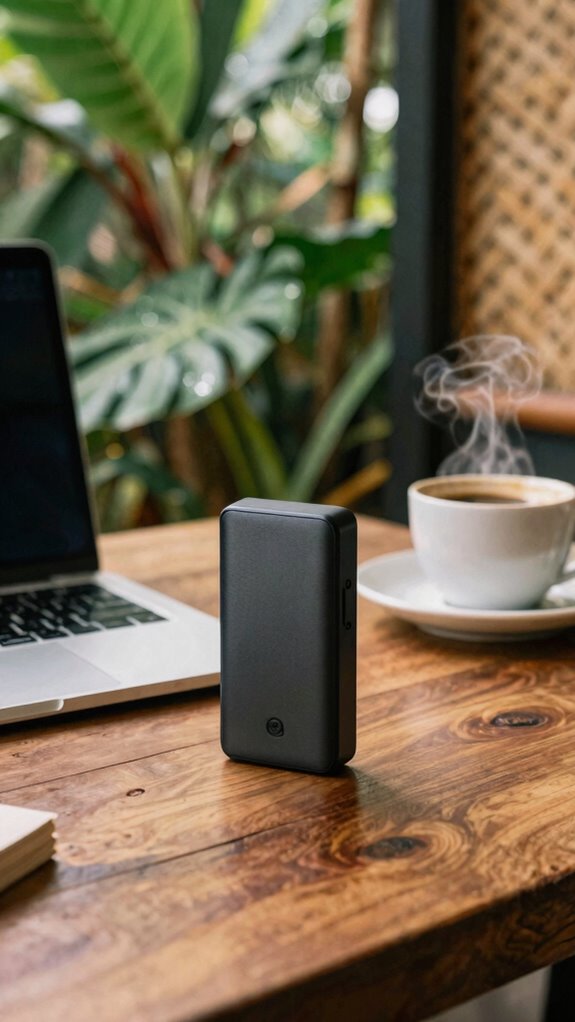
Envision this: you’re sipping a luwak coffee in Bali’s coworking scene, and you decide to back up your latest project. Do you settle for any drive? Heck no. Prioritize rugged external drives—they’re your power tools for serious backup.
- Built tough: Drop-proof, shock-resistant, even water-resistant—think armored tank for your files. A rugged drive can handle the rigors of different environments, making it an essential weather-resistant tool.
- Enterprise-grade speed: Blazing fast transfers so you’re not waiting around like a cubicle drone.
- Long-term durability: Designed to last years, unlike those fragile, cheapo drives you find in airport stalls.
- Portable but tough: Small enough to carry, tough enough to survive Bali’s jungle or a bustling café.
- Trustworthy brand: Go for brands like SanDisk Professional or WD Passport—powerful, reliable, ready.
Storage capacity is another key factor, ensuring you have ample space for all your important data without compromise.
Don’t mess around—this isn’t office USB trash. This is your digital fortress.
Secure Portable Storage Solutions
When you’re remote working from a vibrant Bali co-working space, the last thing you want is to worry about your portable storage pulling a disappearing act—or worse, turning into a ransomware playground. Trust me, I’ve seen drives lost in cafes or stolen in crowded markets (not fun). You need a secure, battle-ready solution.
| Feature | Tip |
|---|---|
| Encryption | Go hardware like SanDisk G-Drive — AES-256 is the Irrefutable Law. |
| Concealment | Think outside the box—disguises like camera lens bags save your data from prying eyes. |
| Redundancy | Rotate drives weekly, store one offsite, and avoid single-point failures. |
| Durability | Rugged cases + shockproof designs? Yes, please. |
| Access Control | Lockable pouches + biometric encryption make it a fortress. |
In this game, your data’s your power—don’t gamble with flimsy, obvious gear. A solid understanding of physical backup strategies can make all the difference in safeguarding your important data, especially when considering the vulnerabilities of portable storage devices.
Encrypted Storage for Security
Switching from just hiding your drives in clever disguise to locking down their data with encryption is like upgrading from a paper lock to a fortress. You’re wielding real power now.
Visualize your old boss, Mr. Buzzkill, eyes wide in disbelief at your tech swagger.
- Use drives with hardware AES-256 encryption (like SanDisk G-Drive); software-only? Please. It’s a paper shield.
- Store passphrases separately not on the drive. Think: a password vault or a clever mental trick.
- Enable full disk encryption on OS—FileVault, BitLocker—no exceptions. encryption standards are evolving, so stay informed to keep your data secure.
- Regularly update/encrypt firmware; don’t let that shiny drive become a weak link.
- Add biometric locks if available—because who’s got time for hackers?
- Remember, proper hardware encryption methods provide a stronger security foundation than software alone.
FAQ
How Often Should Backup Drives Be Physically Inspected for Wear and Tear?
You should inspect your backup drives at least every three to six months. Think of it like giving your vintage skateboard a quick glance before hitting Bali’s treacherous surf—no one wants a surprise wipeout.
Check for wear on connectors, signs of overheating, or weird noises.
Keep in mind those old clients’ “fancy” drives that crapped out overnight? Stay ahead with routine checks—your data’s safety depends on it.
What Are the Best Practices for Securely Storing Passphrases Separately?
You never want your passphrases chilling on your drive or sticky notes—think of this like hiding your secret recipe.
Use a password manager like LastPass or Bitwarden, then jot down the master key on a separate, steel-cased metal card, buried in your safe or hidden compartment.
Got old colleagues who thought they were subtle? Yeah, no—keep your secrets locked tight, like in a spy flick.
Stay smarter than the cubicle drones.
How Can I Prevent Accidental Data Overwriting During Drive Rotation?
Want to *actually* avoid overwriting drives during rotation? Label each drive with a bold, waterproof sticker, color-code them, then make it a ritual—maybe with a catchy chant—before swapping.
Use dedicated folders with clear version tags and set write protections on your most recent backup only.
Think of it like that time Jim’s pranks collided with Dwight’s paranoia—organized chaos wins, my friend. Keep it tight, keep it right!
What Environmental Factors Most Affect the Longevity of Backup External Drives?
Ever wonder what messes with your drives’ lifespan most? Humidity and temperature swings are killers—think Bali’s monsoon season or leaving drives in your hot, muggy backpack.
Keep drives in cool, dry environments—lock ’em in a sealed case or a weather-proof bag. Avoid dust, extreme heat, and direct sunlight—your drives aren’t built for that.
Keep in mind, even old colleagues know: a sweaty Bali night is NOT a backup friend. Stay sharp—your data’s fancy future depends on it.
How Do I Verify the Integrity of Offline Backups Without Risking Exposure?
Ever wonder if your offline backup’s legit? Try a checksum or hash!
Connect the drive, generate a hash (like SHA-256), then store that securely—maybe in a password vault or encrypted note.
Later, recheck—if the hash matches, your backup’s pristine. No exposure risk, no drama.
Recall how Jim always double-checked his “big plans”? Do the same. It’s about staying sharp, not just safe.
References
- https://edtechmagazine.com/higher/article/2012/02/5-backup-pointers-mobile-devices-1
- https://www.linkedin.com/advice/1/how-do-you-backup-data-from-remote-mobile-devices
- https://www.wired.com/story/how-to-back-up-your-digital-life/
- https://www.backblaze.com/blog/byod-and-backups-a-secure-workforce/
- https://www.ncsc.gov.uk/collection/top-tips-for-staying-secure-online/always-back-up-your-most-important-data
- https://www.2brightsparks.com/resources/articles/backup-and-recovery-plan-when-working-from-home.html
- https://www.youtube.com/watch?v=fpnhiUKDM24
- https://privsec.harvard.edu/best-practices-working-remotely
- https://lifetips.alibaba.com/tech-efficiency/top-10-backups-everyone-should-have-not-just-computer
- https://security.stackexchange.com/questions/18600/how-do-you-prevent-physical-backups-from-being-stolen