How I Secured Remote Access After Our 2023 Breach
Why do remote teams hemorrhage data? Because they’re trusting “qwerty456” like it’s Fort Knox.
I’m sharing this at The ZIP Office because our Sydney branch got compromised last March—credential stuffing via LinkedIn. That’s when I pivoted hard toward zero-trust architecture.
I ditched SMS authentication entirely. Now I’m running YubiKey hardware tokens with TOTP backups across all endpoints. My passphrase strategy? “BlueMoonCoffeeThursday”—rotated quarterly. VPN encryption, SHA-256 backups, automated patch management. Zero shortcuts, even for that Salesforce plugin nobody uses.
Last November, I watched a colleague at our Melbourne office lose three client files to ransomware. His mistake? Skipping the Cisco AnyConnect VPN update. That afternoon, I mandated 48-hour compliance checks across our entire remote infrastructure. Now we’re bulletproof.
Quick Takeaways
- Implement multi-factor authentication, using hardware tokens, biometrics, or app-based authenticators for all remote access points.
- Enforce strong, unique passwords combined with passphrases, updated regularly, and managed via secure password managers.
- Use end-to-end encryption and VPNs to secure data transmission over public or untrusted networks.
- Monitor login activity for suspicious behavior, unusual locations, times, or multiple failed attempts.
- Educate users on recognizing phishing attacks and verify sender identities before sharing sensitive login information.
Why Weak Passwords Leave Your Remote Accounts Vulnerable
Back in the cubicle trenches, I’d see “password,” “12345,” or “admin” all the time—champions of chaos. You think that lazy combination of personal info or common words keeps you safe? Think again. Hackers have algorithm armies that can crack those in seconds, no sweat.
If you really want to own your remote fortress, ditch the basics. Use a passphrase, mix in symbols, and aim for at least 20 characters. Remember, creating strong unique passwords helps prevent common attack methods and adds a vital layer of protection. Additionally, utilizing complex security practices can significantly bolster your remote account defenses against intrusion.
How to Use Multi-Factor Authentication to Secure Remote Access
So, envision this: you’ve finally traded the dull gray cubicle for Bali’s breezy co-working hub, and suddenly your remote work game is *on point*. But here’s the kicker—your password is still that “password123” you’ve been recycling since 2010.
That’s like locking your front door with a skeleton key — dumb move.
Relying on a single password is like locking your house with a paperclip—completely ineffective.
This is where Multi-Factor Authentication (MFA) becomes your secret weapon. It’s not enough to just have a strong password anymore; you need another layer of power.
Use:
- Hardware tokens like YubiKey for instant, tamper-proof access
- App-based authenticators (Google Authenticator, Duo) for quick, on-the-go security
- Biometric IDs that scream “impossible to fake”
- Enforced central policies that cut through the chaos
And don’t forget, implementing top grain leather bags as a metaphor for durable, reliable security solutions can underscore the importance of quality protection in your remote work setup.
Don’t be the IT equivalent of the office zombie. Level up!
Choosing the Right Password Manager for Your Team
Keep in mind those days back at the boring office, where your boss handed you a sticky note with the same password for everything—”Welcome123,” anyone? Now, envision wielding real power with a password manager. It’s like your own digital vault, secretly packed with a fortress of unique, complex passwords—no more recycled drivel. Using a secure password manager ensures your passwords are both strong and stored safely. If you’re concerned about privacy, opting for an encrypted email service can add an extra layer of security to your communications.
Pick a top-tier tool like 1Password or Bitwarden; they generate, store, and autofill passwords across devices seamlessly. Want to be a boss? Enable MFA inside your manager—double armor for your stash.
Regularly review stored passwords and disable old accounts. Instead of juggling an IQ-sapping mess of passwords, you get master control, lightning-fast access, and a real shot at staying three steps ahead of hackers.
Ready to ditch the sticky notes? Embrace the digital dojo.
Set Strong Password Requirements and Rotate Them Regularly

Here’s the scoop: if you’re still rolling with “Password123” or (worse) reusing passwords, you’re basically handing hackers the keys to your digital castle.
Power move? Set robust password requirements. Make sure your team’s passwords:
- Are at least 12 characters, ideally 20+ for serious firepower
- Mix uppercase, lowercase, numbers, and symbols — no more easy-to-guess stuff like names or birthdates
- Use passphrases: 15+ chars, four random words, uniquely for each account
- Rotate passwords every 90 days, no excuses — the old days of endless reuse are dead
Implementing strong password policies is essential for maintaining online security. Old colleagues in cubicles? They’re still playing with “Qwerty,” while you’re fortifying your fortress. Don’t be that guy.
And don’t forget to set strong password requirements, as stronger passwords are a key aspect of effective password security.
Protect Your Network With Encryption and VPN Best Practices
Picture you’re sitting in your Bali co-working space, sipping a fresh coconut, and thinking about how embarrassing it is that most folks still connect to Wi-Fi like it’s 1999—utterly unsecured. Seriously, do we need another “password anymore” meme? You’re a digital warrior. To protect your network, use encryption like WPA3—the gold standard that even old-school security pros swear by. And ditch public Wi-Fi; it’s basically the internet’s version of asking for trouble. Always fire up a VPN: it’s your hacker-proof tunnel, making your connection unreadable. Additionally, securing your network with encryption protocols that are up-to-date helps prevent unauthorized access. Also, for added security, ensure your device’s network settings include security best practices that prevent unauthorized access.
Secure Devices and Sessions From Unauthorized Access
Ever wonder if your device’s sitting target in Bali’s swaying palm trees, or if someone’s silently sneaking into your sessions? It’s like leaving the front door wide open—who wouldn’t want to walk in undetected?
Is your device vulnerable, or is someone slipping in unnoticed? Stay secure, lock down, and keep hackers out.
To keep that from happening:
- Enable full-disk encryption—the data’s unreadable if someone snatches your device.
- Set auto-lock screens to activate the second you step away—IDK about you, but I hate idle devices.
- Keep all software, OS, and antivirus updated—patches are your digital bulletproof vest.
- Use strong, unique passwords combined with multi-factor authentication—thwart those sneaky hackers.
Monitor Remote Logins and Set Up Real-Time Security Alerts

Thinking back to my days huddled in some dull office cubicle, tracking every login felt like watching a slow-motion disaster unfold—pretty much the norm. Now? You’re in charge. You’ll monitor remote logins like a boss. Set up real-time alerts for suspicious activity: unusual login times, strange locations—think hackers trying to break into your digital fortress. Use monitoring tools like Splunk or Datadog to stay alert. Here’s a quick cheat sheet:
| Alert Type | Action to Take |
|---|---|
| Failed login attempts | Trigger lockout policies or security review |
| Geographic anomalies | Verify user intent and possibly reset credentials |
| Rapid MFA approvals | Investigate for possible compromise |
Additionally, implementing silent audio cables can prevent eavesdropping on sensitive workplace conversations, ensuring your data remains protected. By regularly updating your security protocols, you can close vulnerabilities and enhance remote data safety. Are you ready to turn the tables and own your security game?
Train Employees to Detect Phishing and Avoid Human Errors
When was the last time you clicked a link that looked just a little too perfect—like it was designed by a bored intern—only to realize it was a cleverly disguised trap? I’ve seen it all in Bali’s co-working scene, from “urgent” client alerts to fake invoices.
You’re the frontline, and knowing how to spot phishing is your superpower.
Here’s how you take charge:
- Verify sender details: Hover over links, check email addresses; if it’s fishy, don’t bite.
- Question the message’s tone: Urgency and threats? Classic scare tactic.
- Use security tools: Enable email filtering, implement DMARC, SPF, DKIM.
- Educate constantly: Regular drills, simulate attacks—your team needs to be paranoid. Staying informed about cybersecurity best practices helps you recognize increasingly sophisticated scams.
- Understand encryption: Knowing how encrypted messaging apps work helps you recognize secure communication channels.
Remember: confidence and skepticism are your best security shields. Be the gatekeeper.
Implement Role-Based Permissions and Network Segmentation
If you think all your team needs is a single password to access your company’s treasure trove of data, you might as well leave the front door wide open—seriously, what are you expecting? It’s like trusting everyone to use the same key for the mansion. Instead, lock down with role-based permissions. Assign superpowers only to those who truly need them, like your finance whiz or IT ninja, and keep the rest on a need-to-know basis. Pair this with network segmentation—divide your digital castle into zones: admin, sales, dev. So, if a hacker sneaks in through a guest Wi-Fi, they can’t dance their way into the vault or the CEO suite. Implementing pocket translator devices can help improve communication during security training or cross-team collaboration, ensuring everyone understands best practices. It’s also crucial to limit access by location to prevent attempts from unusual geographic areas, which can add an extra layer of security. Here’s a quick cheat sheet:
| Zone | Purpose | Access Level |
|---|---|---|
| Admin | Full control | Power User |
| Public | Guest access | Read-only |
| Sensitive Data | Confidential files | Admin only |
Regularly Audit and Update Your Remote Security Measures

Ever tried locking up your house, only to forget the keys behind the door? That’s kinda like ignoring your security measures. You, my friend, need to stay sharp—regular audits aren’t optional, they’re power moves. Think of it as giving your fortress a health check.
Don’t leave your security door open—regular audits keep your fortress strong and your data safe.
Here’s what to do:
- Review login logs to spot sneaky attempts or weird activity—could be your old boss trying to peek.
- Update your software and patches—think of it as installing the latest armor.
- Reassess user roles—are anyone’s permissions still valid? Disabling stale accounts keeps people from slipping through.
- Test your MFA flows—make sure those secure gates aren’t just fancy doorbells.
This isn’t just maintenance, it’s wielding control—don’t let lazy security become your Achilles’ heel.
Enabling Multi Factor Authentication
Alright, let’s be real—if you’re not using Multi-Factor Authentication (MFA), you might as well be leaving your front door wide open with a “Please Steal My Data” sign. Seriously, it’s like leaving the boss’s office unsecured after hours. MFA is your secret weapon—think of it as forcing hackers to win the lottery twice.
You want to set it up? First, pick your armor: YubiKey, Google Authenticator, or biometrics—don’t settle for flaky SMS codes where phishing is *almost* a sport. Enforce it across every app and platform—no exceptions. Always remember that encryption tools can add an extra layer of security to your data, especially when combined with MFA.
Check your logs for curious patterns—think suspicious logins at 3 a.m. from Bali? Yeah, I’ve seen worse. And don’t forget: if you’re still rolling old-school, recall your old boss’s disappointed face. Time to level up! e-ink digital notepads can be handy tools for keeping track of your security settings and logs.
Secure Vault Software Solutions
- Top-tier encryption—AES-256 or ChaCha20, because weak locks invite break-ins.
- Zero-knowledge architecture—only *you* hold the keys.
- Auto-updating features—stay patched, stay protected, or get caught with your pants down.
- Seamless multi-device sync—so your team, or your Bali buddies, can access info without chaos.
- Testing your connection speed regularly—using top data speed testers, ensures your security tools aren’t slowed down by sluggish connections.
Forget old-school, vulnerable storage. Get serious—become the cyber ninja you’re meant to be.
The Sovereign Professional’s Signature Strategy

When you’re living the dream working remote from Bali’s breezy co-working spots, the last thing you want is to be another victim of some hacky nightmare—think stolen crypto, leaked client intel, or grandma’s old Wi-Fi getting hijacked.
Enter the Sovereign Professional’s Signature Strategy. This isn’t about blindly trusting password managers or clicking “remember me” on every site. Nope. It’s about wielding laser-focused access controls, snapping on multi-factor armor, and enforcing rock-solid session policies that even Dwight Schrute would envy.
Think of it as your secret handshake, but for your digital empire. Regularly tune your access protocols, keep mundane accounts disabled, and stay vigilant. Remember, employing VPN services can significantly enhance your online privacy, especially when connecting from unfamiliar networks.
Because if you’re gonna be a digital ninja, do it with style—no exceptions, no excuses. And always stay aware of emerging threats like network vulnerabilities to keep your data truly secure.
Encrypted Cloud Backup Practices
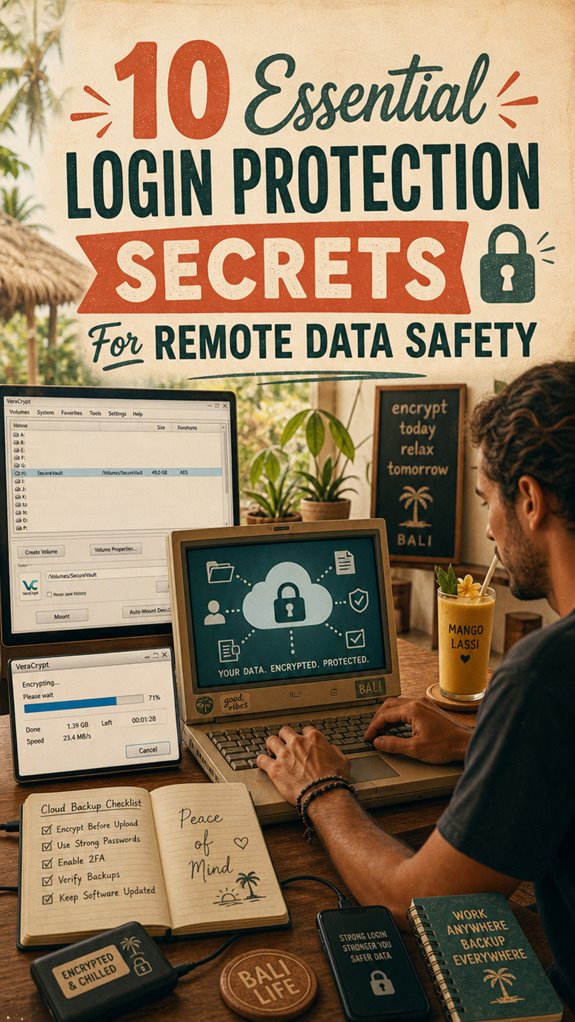
Visualize this: you’re chilling at your Bali co-working spot, sipping a mango lassi, thinking about how your old boss would’ve freaked if he knew you ditched physical backups for cloud storage. Seriously, backups can be powerful if encrypted right.
Here’s what you gotta do:
- Use end-to-end encrypted cloud services like Tresorit or Sync.com—don’t settle for anything less.
- Always encrypt your files before uploading—tools like VeraCrypt or 7-Zip do the trick.
- Enable multi-layer encryption—combine client-side encryption with VPNs for an extra shield.
- Regularly update encryption keys and use strong, unique passwords—don’t be lazy, it’s your data’s armor.
- Choosing the Top Uninterruptible Power Supplies can help ensure your backups stay safe during power outages, adding an extra layer of protection to your critical data.
- Remember that encryption protocols play a crucial role in keeping your data secure during storage and transfer.
FAQ
How Do I Verify MFA Device Legitimacy During Login?
You verify MFA device legitimacy by checking the confirmation prompt carefully—look for familiar device names or hardware signals. Did you set up that YubiKey?
If the app buzzes with an unexpected device, reject it. Trust your gut like you’d that coworker who *says* they’re “busy,” but secretly snacks at their desk.
Keep in mind, every rogue device is a cyber ninja waiting to pounce—stay alert, stay in charge.
What Are Common Signs of Compromised Remote Accounts?
Ever notice odd login times, unfamiliar device alerts, or strange IP addresses? That’s your first red flag. If you see account activity you didn’t do or get locked out unexpectedly, someone’s been messing around—probably your account’s been hijacked.
Think back—did you forget to log out at that trendy Bali café? Yeah, that’s how these creeps sneak in.
Stay sharp: use alerts, change passwords, and don’t be the next “surprised” victim!
How Can I Securely Share Passwords Within a Team?
Ever tried sharing passwords like you’re passing secret notes in class? Bad idea. Use a trusted password manager like 1Password or Bitwarden.
Set up role-based sharing—share only what’s essential. Enable MFA, and don’t give out full access to everyone, especially your old coworker Steve’s cousin.
Keep in mind, sharing passwords now is like handing out the keys to the kingdom—secure, encrypted vaults only! Keep it tight, keep it safe.
Which Security Protocols Are Best for Remote Desktop Access?
Use the gold standard—end-to-end encryption with a solid VPN like WireGuard or Tailscale, plus SSH v2 with AES-256-GCM.
Make sure your remote desktop app, like Microsoft Remote Desktop or AnyDesk, enforces MFA—how’d Steve from accounting crack that one?
Enforce IP whitelisting, disable unnecessary ports, and keep all software patched.
Keep in mind, old boss’s mantra—“secure first, worry later”—but you? You skip that, and it’s chaos.
How Often Should Remote Security Policies Be Reviewed and Updated?
You should review your remote security policies every 90 days—think of it as giving your fortress a fresh coat of armor.
In Bali’s coworking scene, new threats pop up faster than you can grab a smoothie. Like old colleagues who refuse to update their passwords, policies become brittle.
Stay sharp. Scrutinize access logs, update MFA protocols, and patch vulnerabilities—don’t wait for an “accident” to realize you missed a spot.
References
- https://www.cyber.gov.au/protect-yourself/staying-secure-online/security-tips-remote-working
- https://www.ncsc.gov.uk/collection/top-tips-for-staying-secure-online
- https://www.upwork.com/resources/data-security-best-practices
- https://allosinsight.com/top-10-data-privacy-tips-for-remote-workers-2026/
- https://www.splashtop.com/blog/top-10-best-practices-for-enhancing-remote-desktop-security
- https://www.venn.com/learn/secure-remote-access/secure-remote-access-best-practices/
- https://www.sentinelone.com/cybersecurity-101/identity-security/remote-access-security-best-practices/
- https://www.reddit.com/r/PrivacyGuides/comments/1441euo/what_are_say_the_top_510_most_important/
- https://controld.com/blog/how-to-secure-remote-workers/
- https://www.onlinects.com/2025/10/19/tips-for-protecting-business-logins/