Mobile Security: Your Real Defense Against Remote Work Threats
How do I keep my data safe working from Bangkok cafés? I’ve learned that casual Wi-Fi networks are digital playgrounds for cybercriminals.
I write to The ZIP Office because remote workers deserve practical security blueprints beyond corporate fear-mongering.
Last March in Thailand, I watched a colleague lose client files through an unencrypted hotspot. That moment? Game-changer. Now I authenticate every connection like a bank vault. NordLayer masks my IP. I’ve enabled MFA across everything. Auto-connect stays disabled. My MacBook? Firewall maxed. Personal hotspot beats public networks every time.
When Security Becomes Personal
That Bangkok incident taught me something corporate training never could. My colleague didn’t ignore warnings—she just underestimated risk. Today, she’s paranoid about network names, VPN protocols, and endpoint encryption. Her paranoia? Exactly right. One compromised session costs thousands in recovery. Prevention beats remediation infinitely.
Quick Takeaways
- Verify Wi-Fi network names before connecting to avoid fake or malicious hotspots.
- Use a trusted VPN with strong encryption to secure your online activities on public networks.
- Disable auto-connect features to prevent accidental connections to unsafe or rogue networks.
- Enable multi-factor authentication on all accounts and use secure password managers.
- Limit sensitive activities on public Wi-Fi and perform security scans after use.
Why Public Wi-Fi Is a Major Security Risk for Remote Workers
Alright, so here’s the deal: public Wi-Fi is basically the digital version of leaving your front door wide open—except instead of burglars stealing your shiny new sneakers, hackers are lurking, waiting to snatch your personal data, passwords, and all that juicy business intel. Think about it—back in the office, your IT guy had your back, but now? You’re exposed.
That “Free Wi-Fi” at the cafe? It’s a siren call for cybercriminals. They set up fake networks, mimicking legit ones, and snag your login info faster than Michael Scott forgets the office’s safety rules.
You’re risking more than a slow loading webpage—you’re risking your identity, your client info, even your paycheck. So, smart remote workers, don’t fall for the trap. Guard your digital fortress.
Verify Wi-Fi Network Names Before Connecting
When you’re hunting for Wi-Fi in a new place—say, a Bali co-working haven—you might be tempted to just tap that “Free Wi-Fi” network and hope for the best. But come on, don’t be that person. Savvy remote pros know better.
Instead, double-check the network name—verify it matches what your host or provider said. Look for *exact* SSID names; rogue “Free Wi-Fi” signals are often evil twins—designed to snatch your data faster than your old boss could miss a deadline.
When in doubt, scan the options, ask the front desk again, or use your trusted network verification tools. Making sure you connect to the legit network is like knowing your boss’s password—powerful, precise, and keeps you one step ahead of the hackers lurking in the shadows.
Use a Trusted VPN to Secure Your Internet Traffic
Ever tried to surf the web at a Bali co-working space, only to feel like your data’s hanging out in a crowded, sketchy market? That’s where a trusted VPN becomes your secret weapon. It’s like having your own invisible shield that encrypts every byte of traffic, making it impossible for hackers or sneaky networks to peek at your info. Don’t settle for free VPNs — most log your data and leak like a sieve. Instead, pick a business-grade VPN—think NordLayer or Privacy Bee—that guarantees privacy, no logs, and strong encryption. For extra security, consider choosing encrypted email services that protect your communications from prying eyes. Using a reputable VPN Service for Global Privacy and Security is essential for maintaining your confidentiality while working remotely.
Here’s a quick cheat sheet:
| VPN Type | Benefit | Example |
|---|---|---|
| Free | Nope | Watch out for logs |
| Paid | Power-up | NordLayer, Privacy Bee |
| Mobile | Convenient | Use with smartphone |
| Enterprise | Top-tier | Central management |
| Personal | Solo shield | Secure your device |
Choose Your Connection: Personal Hotspot or Public Wi-Fi?
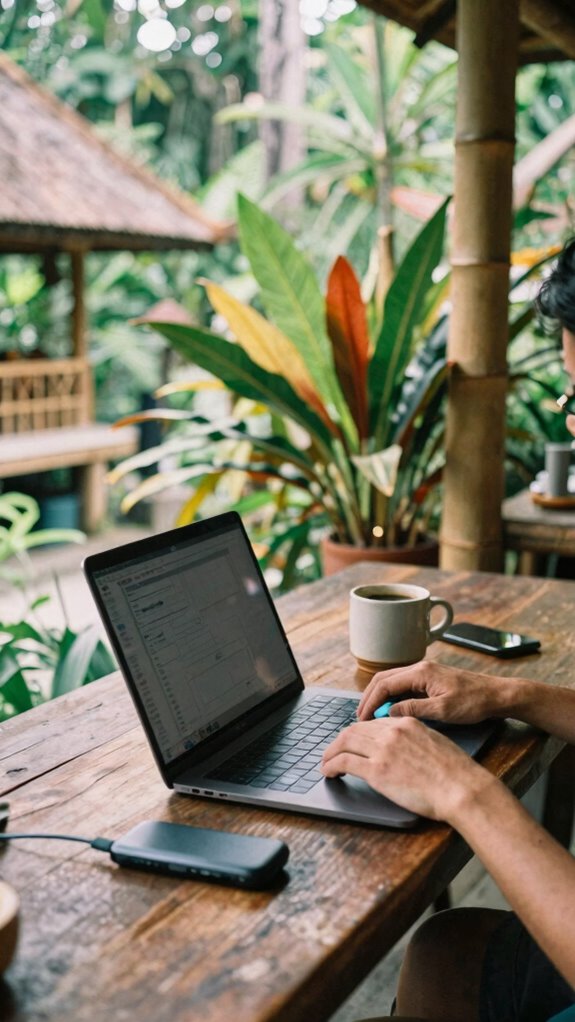
Want to ditch that neighborhood Wi-Fi full of sketchy signals and dead zones? Good call. Here’s the deal: your best move is a personal hotspot or a dedicated portable Wi-Fi device. Why? Because you’re in charge, not some flaky café or neanderthal hotel lobby.
Ditch sketchy neighborhood Wi-Fi—take control with a personal hotspot or portable device for safer, faster connections.
- Personal Hotspot—Your phone acts as a fortress. Set a strong password, enable WPA3 encryption, and shut off auto-connect. Using a network security protocol adds an extra layer of protection against cyber threats.
- Portable Wi-Fi Device—Don’t rely on sketchy public networks. Grab a dedicated LTE/5G hotspot (Netgear Nighthawk M6) for ultimate control and speed.
- Avoid Public Wi-Fi—It’s basically a playground for hackers. Limit your risky activities like banking or confidential chats.
- Stay Vigilant—Verify the network’s name with your provider. No “Free Wi-Fi” clones sneaking in. Using a secure connection method ensures your data remains private and protected from potential cyber threats.
Enable Multi-Factor Authentication to Protect Your Accounts
You’ve already upgraded your connection game—no more shady Wi-Fi or relying on hotel freebies that could be carrying malware for lunch.
So, why leave your accounts vulnerable? Enable multi-factor authentication (MFA). It’s your digital fire-breathing dragon guarding your login castle.
Just go into your account settings; turn on MFA, and pick a method like Duo or Okta Verify.
Need a real pro tip? Use an app instead of SMS—text messages are the weakest link, easily hijacked.
Keep in mind, strong passwords are baseline; MFA is that extra layer of ninja smoke between hackers and your intel. Multi-factor authentication is an essential step in modern digital security, further protecting your identity and data.
Think of it like protecting your Bali co-working setup from the chaos of clueless cubicle dwellers back home—just smarter, faster, and way more secure.
Remember, pairing MFA with a secure password manager can greatly enhance your overall security setup.
Stay sharp, stay protected.
Keep Your Device Safe With Antivirus and Firewalls
Most of us think a quick click on a suspicious link or rogue app is no big deal, but honestly, ignoring your device’s defenses is like leaving your Bali beachfront villa unlatched—just asking for trouble. When I work from here, I swear by this:
Ignoring device security is like leaving your villa unlatched—danger lurks when you’re least expecting it.
- Install a top-tier antivirus—not some freebie; think Malwarebytes or Kaspersky. They catch threats before they become nightmares.
- Firewalls are your gatekeepers—set up your hardware firewall, or use trusted software like Synology to block malicious traffic knocking on your device.
- Keep everything up-to-date—OS patches, browsers, apps—hackers love outdated, vulnerable points. Using authenticator apps can also enhance your account security, especially when combined with other measures.
- Run malware scans after public Wi-Fi—it’s like sweeping your villa’s floor after a storm; you never know what lurks in the corners.
- Use public Wi-Fi security tips to identify safer connection strategies and protect your data from interception.
Look, cubicle slaves, take control—power is in how you protect the digital kingdom.
Disable Automatic Wi-Fi Connections and File Sharing Features
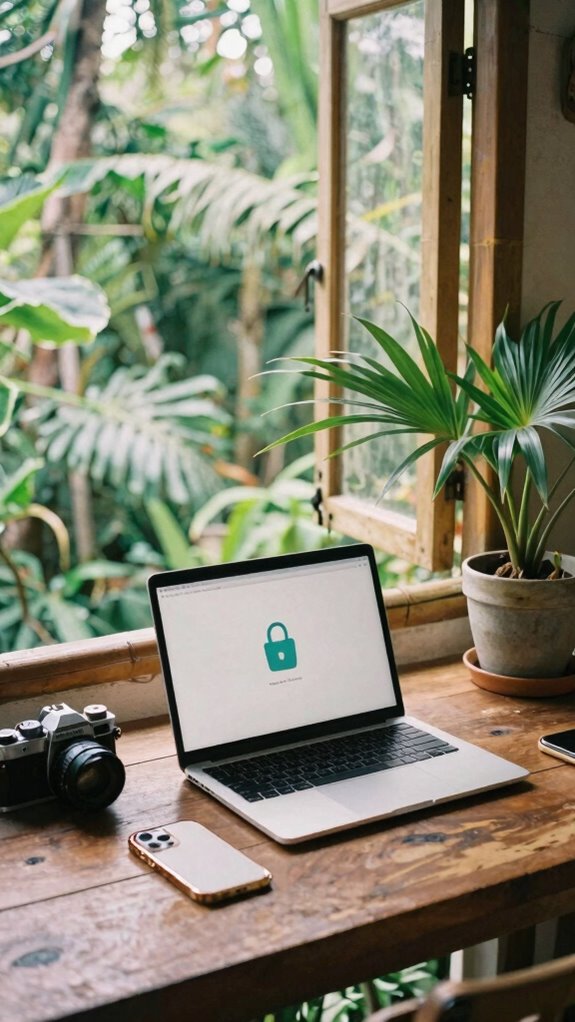
Ever since I left the cubicle chaos behind and started working from a Bali co-working space, I’ve realized one thing: auto Wi-Fi connect is basically asking for a digital troublemaker to crash your vibe.
Remember those days back in the office, where just walking past a rogue printer or Wi-Fi pop-up could unleash chaos?
Now, with remote work, it’s even worse. So, here’s the deal—disable that auto-connect feature. Dive into your device settings, turn off “connect to known networks automatically,” and don’t just trust the initial Wi-Fi SSID name; verify it with the provider.
Why give hackers free rein? Think of it like locking the door behind you, only smarter.
Plus, ditch file sharing—just because it’s easy doesn’t mean it’s safe. When working remotely, using secure connections is essential for protecting your data from potential breaches.
Power move: be intentional, not sloppy.
Set Up and Use Your Personal Hotspot Securely
Additionally, always stay informed about the latest security protocols to ensure your connection remains safe and protected. Walk away from the boring Wi-Fi risks, and claim your digital sovereignty. Remember—the Wi-Fi world is a jungle—stay king. Using email alias services can help maintain your privacy and prevent unauthorized access while managing your online identity.
Practice Session Hygiene: Log Out, Clear Cookies, and Lock Your Screen
Alright, picture you’re kicking back in Bali’s chill co-working vibe, feeling pretty good about hacking your remote life like a pro—and then suddenly, your device dings with someone sneaking a peek into your session.
Here’s the deal: don’t let your device be the open door for nosy neighbors or cyber creeps. Always log out after finishing your work—think of it as locking the door on your digital secrets. Clear cookies to wipe out sneaky trackers and session crumbs—no one needs to stalk your history like it’s a Netflix binge. Lock your screen when stepping away—whether grabbing a smoothie or chatting with a friend, don’t be that person leaving their laptop wide open. To keep your setup organized, consider using a command hook pack for easy storage and quick access.
| Power Move | Why It Matters |
|---|---|
| Log Out | Stops unauthorized access |
| Clear Cookies | Prevents session hijacks |
| Lock Screen | Keeps prying eyes at bay |
Use Encrypted Cloud Storage to Keep Your Data Safe When Working Remotely

When you’re swapping out the dull grind of a cubicle for Bali’s tropical Wi-Fi hammock, trusting your device alone to keep files secure is like leaving your homemade smoothie unattended in the sun—it’s a bad idea.
Enter encrypted cloud storage—your secret weapon. Why? Because it locks your files behind layers of high-powered encryption, making digital thieves sweat. Here’s the power play:
- Use reputable providers (Tresorit, Dropbox Business)—they actually care about your secrets.
- Enable two-factor encryption — don’t just settle for passwords, add that extra hop.
- Keep local copies minimal—store sensitive data in the cloud, not on your laptop.
- Regularly audit your permissions—who has access? Cut the freeloaders.
- Choose proven SMS Gateway Services—these platforms ensure your communications remain reliable and secure for remote work.
Avoiding Public Wifi Risks
Switching from the fuzzy safety net of encrypted cloud storage to public Wi-Fi feels a bit like stepping onto a crowded street in Bali—lively, but full of shady characters trying to thumb your wallet. You’re basically inviting data pickpockets, so don’t give them the pleasure.
Here’s the game plan:
| Action | Why it Matters |
|---|---|
| Use a portable Wi-Fi hotspot | Keeps your data locked in your pocket. |
| Disable auto-connect | Avoids dumbly linking to evil twin networks. |
| Verify network SSID | Confirms you’re not walking into a trap. |
| Limit activity on public Wi-Fi | Keep sensitive stuff for your private net. |
| Run security scans after | Spot malware before it turns into chaos. |
Secure VPN Devices for Remote Work
Nothing kills the remote work vibe faster than a sketchy public Wi-Fi leaving your data naked and vulnerable—like a bad Tinder date.
As a Bali-based IT pro, I’ve seen it all; don’t be that person with exposed data.
Upgrade your game with *secure VPN devices* — the power move for remote warriors:
- Portable Wi-Fi hotspots — your private, unhackable fortress, no sneaky “evil twin” networks.
- Business-grade VPN hardware — like a mini fortress you control, encrypting everything with enterprise security.
- Smart routers with firewalls — kick out uninvited guests and lock down your digital mansion.
- Dedicated encrypted devices — keep sensitive work away from the chaos, like a boss.
Trust me, bridging the security gap makes you the hero, not the victim.
Being aware of security flaws and how hidden vulnerabilities can be exploited emphasizes the importance of robust protection measures. Using secure connection protocols is essential to repel cyber threats and protect your data in public networks.
Isn’t it time to level up?
Personal Device Security Practices

Keeping your personal device secure isn’t just about dodging hackers — though, let’s be honest, that’s a big part of it — it’s about protecting your digital life from the chaos of public Wi-Fi, which is basically the wild west of the internet.
Recall that time at the office when Bob left his laptop unlocked? Yeah, the same rule applies here.
Use strong, unique passwords and activate multi-factor authentication (MFA) like your life depends on it — because, in today’s setting, it does.
Enable automatic updates; they’re like digital armor.
Disable file sharing, AirDrop, and remote access — no one needs extra access points for cyber creeps.
And always verify your network’s SSID — don’t get fooled by a sneaky clone Wi-Fi.
Be smarter than the “wild west” — you’re the sheriff here.
Additionally, consider using personal privacy settings to control which apps and services have access to your data during remote work sessions.
Encrypted Network Configurations
When you’re working on a tropical balcony in Bali, sipping coconuts and pretending you’re the star of a startup ad, the last thing you want is some hacker sneaking into your network like it’s a back-alley deal. As Bali’s local IT wizard (hang loose, I’ve seen it all), let’s talk encryption:
- Configure your VPN with strong encryption protocols—think AES-256—then sit back knowing your traffic is just a secret handshake.
- Use WPA3 on your portable hotspot—because if Wi-Fi’s not locked down, it’s just an open invite to snoopers.
- Apply SSL/TLS everywhere—your email, cloud storage—nothing should be transmitted in the clear.
- Regularly update device firmware and security settings—just like those ’90s updates after the boss’ rant, but for your peace of mind.
Without proper encryption, you’re just another fish in the big, bad, open sea.
FAQ
How Can I Detect Fake Wi-Fi Networks and Evil Twin Hotspots?
You spot a fake Wi-Fi? First, confirm the SSID matches what your provider or coworker gave you—no sneaky “Free Wi-Fi” clones.
Use network verification tools or apps—like in Bali, where Grandma’s friend’s cousin’s coffee shop might host a twin hotspot.
When in doubt, ask the owner or check with your trusted remote hub.
Keep in mind, if it feels off, it probably is—trust your gut, not a shiny new name.
What Are the Best Practices for Managing Passwords Securely on Mobile Devices?
Lock down your passwords like your Netflix login during a blackout. Use a top-tier password manager—something like 1Password or Bitwarden—to generate ultra-strong, unique passwords for each account.
Enable MFA everywhere. Never reuse passwords, especially on those sketchy public Wi-Fi cafes.
Recall Uncle Jim’s advice? “Weak passwords invite trouble.” Keep secrets safe, stay in control, and don’t be that guy whose account gets hacked right after bragging at Bali’s coworking spots.
How Often Should I Update My Device’s Security Patches When Working Remotely?
You should update your device’s security patches immediately when they’re available—no excuses. Think of these updates as your digital armor shield, especially when networking from Bali’s jungle coworking spots or a sketchy café.
Haven’t heard about the latest malware outbreak? Doesn’t matter — patch it. Old boss always said, “Better safe than sorry,” right? Keep your OS, browsers, and apps current, or risk becoming yesterday’s news for hackers.
Stay sharp!
What Are Effective Ways to Prevent Phishing Attacks on Remote Work Accounts?
You wanna dodge phishing like a pro? Use multi-layered shields—verify links before clicking, scrutinize sender addresses, and hover over URLs to spy on their true destinations.
Enable MFA, turn on email filtering, and don’t trust “urgent” messages from your old boss’s Amazon account.
Keep in mind, one wrong click could make your remote hustle a disaster. Stay alert, stay skeptical—don’t be the hero who clicked “Yes” on that sketchy offer.
How Can I Ensure My Portable Hotspot Device Remains Secure From Hacking?
You gotta lock down that hotspot like it’s the Holy Grail. Change default admin passwords—don’t leave ‘admin/admin’—and enable WPA3 encryption for top-tier shield.
Regularly update firmware, disable remote management, and hide your network SSID—no shady passersby should see it.
Use a strong, unique password, and think about physical security—don’t let your device become some hacker’s playground.
Keep in mind, old bosses would’ve loved micromanaging your Wi-Fi—don’t let ‘em!
References
- https://mind-core.com/blogs/how-to-use-public-wi-fi-safely-checklist-for-remote-staff/
- https://www.linkedin.com/posts/safe-it-managed-services_its-cybertip-tuesday-working-from-the-activity-7401661445903499264-eHOG
- https://growthbusiness.co.uk/10-security-tips-remote-mobile-working-16882/
- https://www.cyber.gc.ca/en/guidance/telework-security-issues-itsap10016
- https://www.tayloredsolutions.im/staying-safe-of-public-wifi
- https://www.youtube.com/watch?v=1knndsqN62w
- https://www.ou.edu/ouit/workanywhere/access/securing-remote-work
- https://goleadingit.com/blog/vpns-the-right-way-to-use-public-wi-fi-without-getting-hacked/
- https://nordlayer.com/blog/network-security-for-remote-employees/
- https://www.ftc.gov/business-guidance/small-businesses/cybersecurity/securing-remote-access-to-your-network