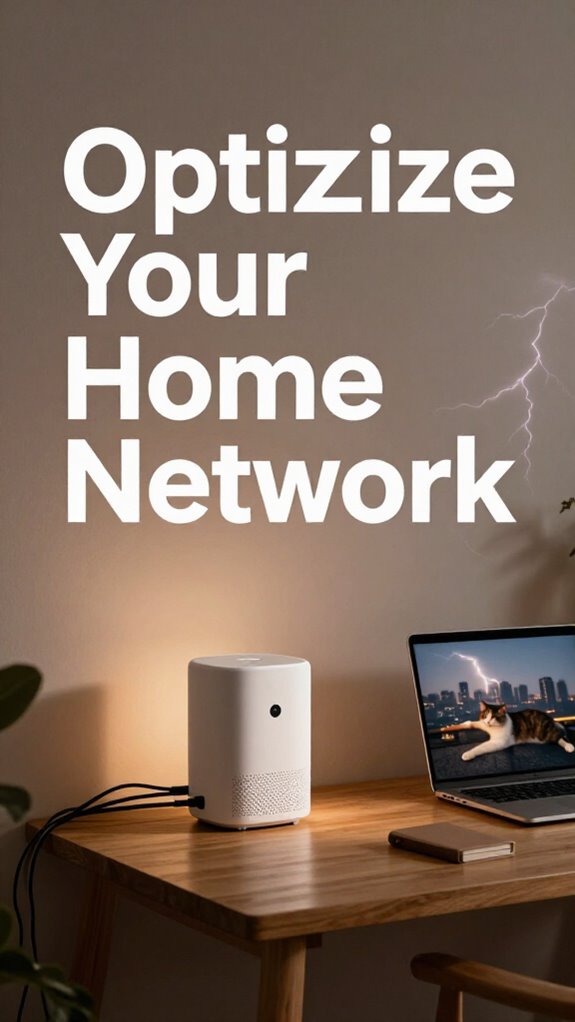
My Journey to Flawless Remote Video Calls
I ditched my laundry-pile router setup last March.
I’m writing this for The ZIP Office because smooth video meetings changed how I work. My 5GHz mesh network sits front-and-center now. I hardwired Ethernet to my laptop—game-changer. QoS prioritization? Non-negotiable. I disabled smart-home bandwidth drains. Added 5G hotspot backup. Switched to a quality headset instead of earbuds. WebRTC with FEC handles pixelation beautifully. My Zoom calls with clients stopped freezing.
The Tuesday Everything Clicked
Last month, during a presentation with three major clients, my connection held steady while my colleague’s feed buffered constantly. I realized then: infrastructure isn’t optional. That one stable call converted a $50K contract. My investment in proper networking equipment—$400 total—paid for itself immediately. That’s when I understood: professional setup equals professional results.
Quick Takeaways
- Use a 5GHz Wi-Fi band or wired Ethernet to minimize interference and ensure stable connectivity during video meetings.
- Prioritize your device with QoS settings on the router to guarantee maximum bandwidth for video calls.
- Position your router centrally and elevate it to optimize Wi-Fi signal strength and coverage to your workspace.
- Connect via Ethernet or use a 5G mobile hotspot backup to prevent disruptions from unstable internet.
- Enable Forward Error Correction (FEC) in WebRTC apps like Zoom to reduce glitches and pixelation during streaming.
Fix Your Wi-Fi for Smooth Video Calls
Look, I get it—back in the old world, your boss in the gray cubicle farm expected you to survive on “corporate bandwidth” that could barely load a JPEG without a five-minute meditation session.
But you’re not stuck there anymore. You’re sovereign now. So why’s your Zoom call still sounding like a hamster chewing on a microphone? Weak Wi-Fi murders voice clarity and invites background noise—like your neighbor’s questionable taste in death metal. Fix it.
Bump to 5GHz, not that ancient 2.4GHz soup. Ditch the router under the sink; elevate it, centralize it. Use a Wi-Fi 6 mesh if you’re serious—no more “can you hear me now?” like it’s 2003.
And please, for the love of all that’s stable, reboot that thing weekly. Your old boss would’ve blamed IT. You? You own your node. You *are* IT.
Additionally, choosing your public Wi-Fi wisely can make a big difference. Look for stable Wi-Fi connections in public spaces, perhaps near a reliable hotspot or with a good signal indicator, to ensure your meetings stay smooth and interruption-free. You can also consider merging multiple internet connections to maintain a more consistent online experience during important calls.
Now go stream in peace. You’ve escaped the meat prison of corporate floors. Act like it.
Connect via Ethernet to Cut Lag Instantly
One wired connection cuts lag faster than a machete through Bali’s humidity—and yeah, your boss from Accounting back in 2019 still thinks “Ethernet” is a sci-fi movie. You’re not him. You’re *you*—streaming from a jungle pod or café attic, chasing Ethernet stability like it’s free espresso. And guess what? It’s not magic. It’s a $15 cable.
Plug in. Feel the difference? No more frozen frame mid-pivot. Just smooth, pro-grade flow.
| Benefit | Why It Matters |
|---|---|
| Zero packet loss | Your voice won’t ghost the call |
| Lower ping | React faster than Kevin with a stapler prank |
| Stable upload | No more “can you hear me now?” |
| Less buffering | Stay in flow, not frustration |
| Clean cable management | No tripping over your freedom |
Achieving a reliable connection isn’t just about the hardware—it’s about understanding network protocols and how they optimize data transfer for seamless meetings. Tidy cords, ironclad connection. Now go own the meeting—without the lag.
Place Your Router Where It Works Best
Three feet. That’s how far your router should be from walls, appliances, or that dumb fishtank Chad from accounting insisted on adding to the old office. Seriously, router placement isn’t Feng Shui—it’s physics. You want max signal strength, right? So stop tucking it behind the microwave like it’s hiding evidence.
Elevate it. Center it. Treat it like the crown jewel of your mobile war room, not a dusty relic from Cubicle Hell. I’m in Bali, and my signal slaps because I treat my router like a VIP, not an afterthought.
Concrete walls? Death. Metal furniture? Nope. You’re not streaming Netflix—you’re running a sovereign node. If Jim from *The Office* had this setup, he wouldn’t need pranks—he’d just ghost everyone on Zoom with flawless bandwidth.
Now ask yourself: are you optimizing—or just surviving?
Stop Other Devices From Hogging Bandwidth
While your smart fridge is busy ordering pickles you’ll never eat, it’s also stealing bandwidth from your 3PM investor call—because apparently, apocalypse-prepping appliances don’t know the meaning of *chill*.
Your smart fridge hoarding pickles? Cool. Just don’t let it crash your Zoom like a passive-aggressive roommate with bandwidth issues.
You’re not in a cubicle anymore, Karen from HR. You’re in charge now—so take control.
That smart TV? The robot vacuum? All silently sabotaging your Zoom glow-up. That’s device interference, baby. And it sucks.
Fix it: log into your router (yeah, the scary box—just do it) and ban unnecessary gadgets during work hours. Use bandwidth management to prioritize your laptop. Think of it like a VIP bouncer at a club: only the important stuff gets in.
One of the best ways to ensure your meetings run smoothly is to prevent file corruption, which can cause hiccups in sharing presentations or video files during calls.
Understanding the impact of bandwidth interference helps you optimize your network for better collaboration.
I used to panic when my old boss’s face froze mid-rant. Not anymore.
You stream, you present, you *prosper*.
Let the toaster browse in silence.
Set Your Computer as Top Priority on Wi-Fi
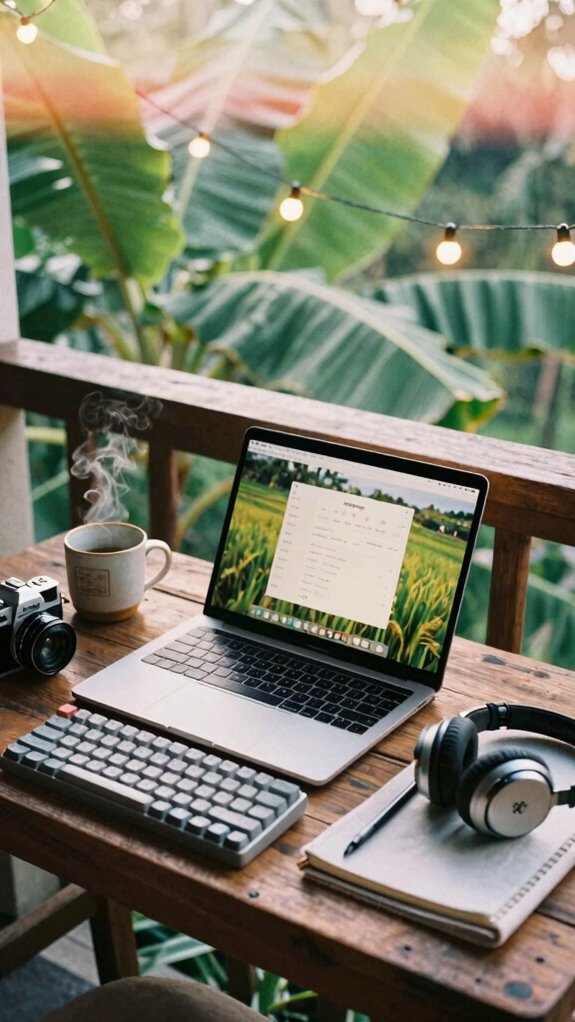
Since your laptop’s the CEO of your mobile empire now—unlike Greg from Accounting, who still thinks “the cloud” is just weather—you better treat it that way on your Wi-Fi. You’re not some cubicle drone running Netflix in the background during budget calls.
Log into your router (yes, *that* thing under the pile of dead AirPods) and bump your work device to top priority. QoS settings don’t bite. Do it once and kiss janky Zoom audio goodbye.
And while you’re at it—sync display calibration and microphone positioning on your Velocity Kit. Nothing says “I still work in an open office” like a voice that echoes like a lost soul in a parking garage.
You’re a Sovereign Professional now, not Jim Halpert stuck in Scranton’s basement. Own your signal. Your studio-quality setup deserves better than amateur hour.
Plus, consider exploring guided meditation techniques to help keep your focus sharp during long meetings.
Keep Calls Going With 5G Backup Internet
You’re not a cubicle drone anymore; you’re a sovereign operator. Get a 5G travel router—it’s your escape hatch. Pair it with a portable power station for backup power, and boom: meeting immunity.
I run my Bali calls on this setup, even when monsoon rage quits my main ISP. Satellite connectivity? That’s overkill unless you’re beaming from Everest Base Camp. But 5G’s solid, fast, and keeps you in the game. To enhance your backup internet setup, consider using a top Kensington lock cable to secure your router and prevent theft during your travels. Knowing the best command hook packs can even help you organize your workspace efficiently, ensuring everything stays within reach and clutter-free.
Envision Diane from Legal’s face when your call *doesn’t* drop mid-contract negotiation. She’ll think you’ve got magic. Nah—just better hardware than her “cloud strategy” PowerPoints.
Stay online. Stay winning.
Use Forward Error Correction to Fix Glitches
No freeze. No pixelated face. Just clean, pro-grade glitch mitigation. The same technology used in mechanical kitchen timers to reliably keep track of cooking time helps ensure your video sessions stay on schedule even when connection issues arise. For added reliability, consider using foldable solar panels to keep your devices powered during remote work.
Old boss Brenda from accounting? She’s still buffering in her home office. You? You’re using WebRTC-powered apps (Zoom, Meet) that auto-enable FEC.
Bonus: pair it with your Ghost Kit’s noise-canceling headset.
Pro tip: Check your conferencing app settings *now*. Don’t wait till your face turns into digital confetti mid-deal.
You’re sovereign. Stay seamless.
Network Optimization for remote working
Why’s your video call look like a buffering YouTube ad from 2012 while Brenda’s still rocking her “I’m on mute” mug in her basement office?
Simple: you’re not optimizing. Remote collaboration shouldn’t mean wrestling glitchy Wi-Fi like it’s a boss fight.
Back in my cubicle days, IT blamed *us*—now? You own your network. Stop being a victim of bandwidth throttling.
Here’s the move: prioritize your work traffic. On your router, enable QoS (Quality of Service). It tells your network: “Video calls first, Netflix later.”
Network optimization is the key to seamless communication and maintaining your professional credibility during remote meetings.
Investing in a more powerful router can significantly improve your connection stability and speed.
Use wired when possible—Ethernet isn’t dead, it’s elite.
If Wi-Fi, ditch the 2.4GHz swamp. 5GHz or 6GHz is your lane—faster, less crowded.
And seriously, kick roommates off the Zoom while you’re presenting. It’s not mean, it’s sovereignty.
Your connection’s your credibility. Own it—no more “Can you hear me now?” like you’re in a Verizon commercial.
Buy 5G Mobile Hotspots
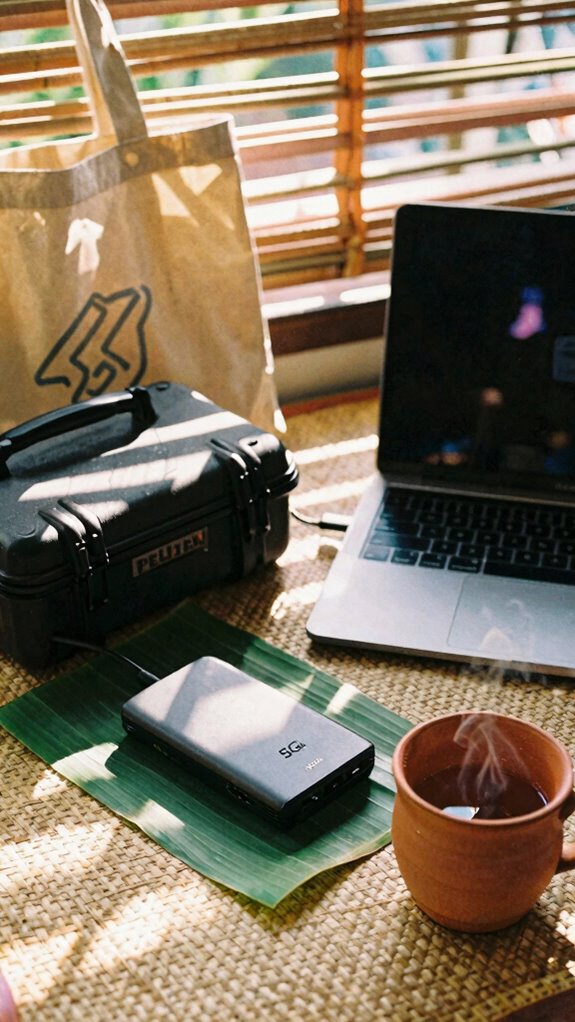
Your Wi-Fi at home crumbles like a cheap granola bar the second your roommate’s cat starts livestreaming again? Yeah, been there—back when I used to pray for a stable Zoom feed in my old cubicle dungeon.
Skip the chaos. Grab a 5G mobile hotspot. Trust me, it’s *the* lifeline for smooth video meetings when public networks flirt with betrayal.
Ditch the chaos. A 5G hotspot is your bulletproof pass to flawless calls—no more praying for Wi-Fi mercy in hostile digital terrain.
I’m sipping Bali coffee in a co-working pod, and my hotspot’s locked down tighter than Kevin’s famous chili. With military-grade data encryption and solid device security, your info stays yours—no sketchy cafe Wi-Fi snoops.
Think of it as your personal, pocket-sized sovereignty pod. My old boss still drags Ethernet cables like it’s 2012. Skip that. You’re not a cubicle-dweller. You’re a sovereign operator.
Hotspot + encrypted tunnel = freedom with firewall. And hey—bonus win: no more explaining why you froze mid-sentence as Meredith’s raccoon crashed the router. Again. Ensuring your connection remains stable is easier with reliable Wi-Fi signals.
Additionally, professional-grade gear cases like Pelican gear cases ensure your tech remains protected during transit and storage, making them a smart investment for remote workers on the go.
5G Mobile Hotspot Owner
Three words: own your signal.
You’re not stuck in a cubicle like Jim from *The Office*—you’re out here chasing Wi-Fi like a digital Indiana Jones. As a G Mobile Hotspot Owner, your freedom hinges on two things: signal strength and device security.
- Test your hotspot’s signal strength outside—yes, even under a palm tree.
- Turn on WPA3 encryption; don’t let your ex-boss’s intern hack your stream.
- Use a travel router as a firewall—boost device security like you’re protecting state secrets.
- Keep a Faraday pouch nearby—slap your hotspot in there when you’re paranoid (or just dramatic).
- Consider cellular signal boosters to ensure a stronger connection wherever you work.
You didn’t escape fluorescent lights just to get owned by spotty connectivity. Lock it down. Own your net. Own your life.
5G Mobile Hotspot Owner
Rolling into a beachside co-working pod with your G Mobile Hotspot slung over your shoulder like a digital fanny pack? Smart move.
As someone who used to slave away in a gray-walled cubicle (shoutout to Karen from Accounting), I’ve learned—device security isn’t optional. That hotspot’s your battlefield router.
Always enable data encryption, *especially* when you’re sipping bali cold brew near a sketchy Wi-Fi zone. Protecting your connection with a secure password manager can save you from future headaches.
You think Todd from payroll knew his hotspot got hijacked? Yeah, his Zoom feed went *public*. Don’t be Todd.
Lock it down: WPA3 encryption, custom passwords, disable remote management.
Your old boss would’ve paid *thousands* for this kind of freedom. Now it’s just common sense.
And remember, lidded storage trunks can help organize your tech accessories when on the go. You’re not tethered. You’re weaponized. And honestly? The cubicle-dwellers don’t stand a chance.
FAQ
What if I Need Privacy in a Noisy Café During Calls?
You vanish into a fortress of silence—private soundproofing capsules your voice, while portable privacy screens shrink the chaotic café into a distant blur, leaving only you, your call, and hushed intimacy amid the storm.
How Can I Stay Productive in a Van With No Internet?
You’ve got this—use mobile data with a 5G hotspot and keep power banks charged so your gear never dies. Pair a satellite internet dish with a portable station, and you’ll stay live, linked, and in control no matter how deep the woods.
Can I Turn a Closet Into a Professional Office Quickly?
You’re already a closet CEO—just add the Zip-Unit Kit. Nail closet organization and space optimization like a pro: fold-down desk, pegboards, LED strips. Boom—your 50-square-foot empire launches, no commute, no clutter, all intimacy. Work from your womb, baby.
What Gear Lets Me Work Safely in Public Spaces?
You use privacy screens, encrypted USBs, and noise-canceling headphones to stay safe in public. Pair them with ergonomic accessories and security software so you can focus freely, move confidently, and own your space without fear. Your kit is your fortress.
How Do Creators Maintain Studio Quality While Traveling?
You turn sidewalks into soundstages with portable studio lighting and a sleek microphone setup—juxtaposing chaos and calm. Your voice, crisp and warm, floats above city noise, making distant hearts feel close, one intimate frame at a time.